
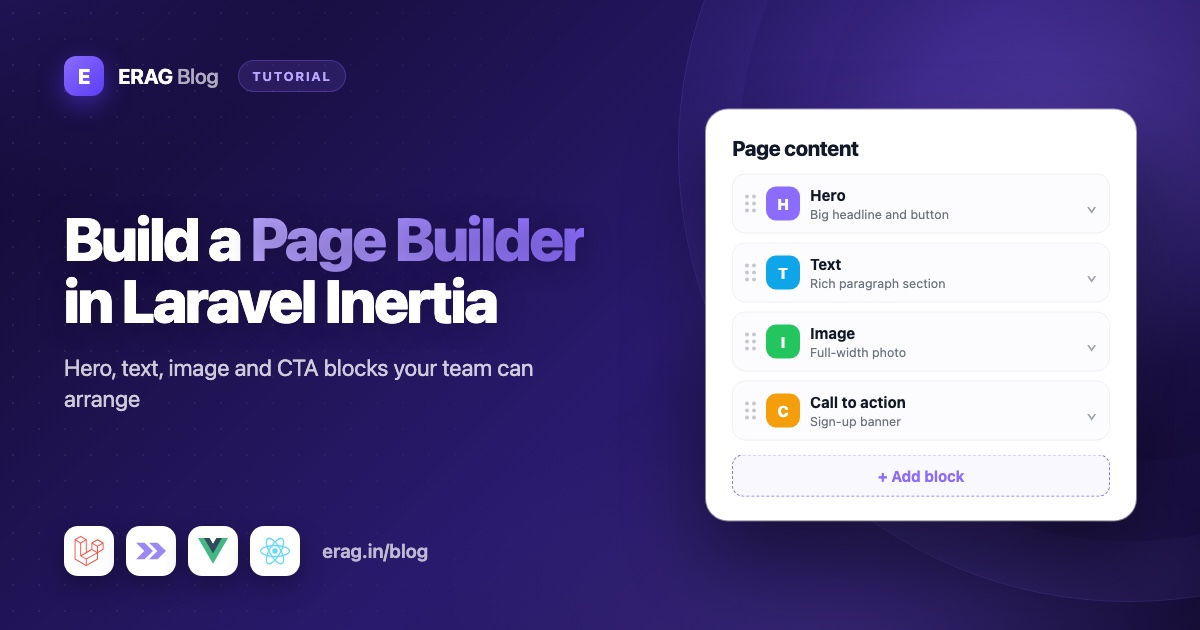
A Laravel page builder lets editors build pages from ready-made sections, like a hero, a text block, an image and a call to action, without a developer writing a new template for every page. The simplest way to build one is to store each page as a JSON list of blocks, where every block has a type and its data, in a column cast to array. Editors add, drag into order and fill in blocks with the Blocks field from Laravel Inertia Forms, and on the public page one Vue or React component per block type turns that list into sections.
This tutorial builds the whole thing on Laravel 13 and Inertia v3: a pages table, four block types (hero, text, image and call to action), create and edit screens, the public page, and a draft switch with an SEO description. Along the way, it covers when JSON blocks are enough and when you need a real CMS.
The short version
- Create a
pagestable with ajsoncolumn calledcontent, and cast it toarray. - Define each block type with
Block::make('hero')->fields([...])insideBlocks::make('content'). - Save the validated
contentinto the column, after swapping uploaded images for their URLs. - Edit a page with
PageForm::make()->bind($page). The blocks fill themselves in. - On the public page, map each
typeto a component and loop over the blocks. - Add a
publishedswitch and a meta description, so drafts stay hidden and each page has its own search snippet.
You need PHP 8.3 or newer, Laravel 13, Inertia v3 and Tailwind CSS 4, plus Vue 3.5 or newer, React 19 or Svelte 5 on the frontend.
How a block-based page builder works
Most landing pages are a stack of sections: a big headline at the top, some text, a picture, a closing banner with a button. A page builder lets editors build that stack themselves.
The trick is to store the page as data, not HTML. Each section is a block with a type (which kind of section it is) and data (what goes in it):
[
    { "type": "hero", "data": { "heading": "Ship forms faster", "intro": "Describe them once in PHP." } },
    { "type": "text", "data": { "heading": "Why it works", "anchor": "why-it-works", "body": "..." } },
    { "type": "cta", "data": { "text": "Ready to try it?", "button": { "url": "https://example.com/signup", "label": "Start free" }, "style": "accent" } }
]
The admin screen edits that list. The public page reads it and draws each block with a matching component. Content and design stay apart: editors can't break the layout, and when you restyle the hero component, every page that uses it updates at once.
When JSON blocks are enough, and when you need a CMS
JSON blocks are a good fit when:
- The pages are landing pages, campaign pages or an "About" page: content that's always shown as one whole page.
- You, the developer, design a small set of section types and editors combine them.
- A small team edits the pages, without approval steps.
A full CMS is overkill for that. It brings a second admin panel, a second login and another system to update, just to manage a few pages. Keeping blocks inside your Laravel app means your own auth, your own components and your own tests.
Reach for something bigger when you need drafts with version history, scheduled publishing, approval workflows or per-block translations. The same goes when you need to search inside blocks across many pages, like "every page that links to /pricing", or when one piece of content, such as a testimonial, must be shared by dozens of pages. You can build each of those yourself, but at some point you're building a CMS.
Step 1: Create the pages table
Each page gets a title, a slug for its URL, and the blocks:
Schema::create('pages', function (Blueprint $table) {
    $table->id();
    $table->string('title');
    $table->string('slug')->unique();
    $table->json('content');
    $table->timestamps();
});
The array cast turns the JSON into a PHP array when you read it and back into JSON when you save:
<?php

namespace App\Models;

use Illuminate\Database\Eloquent\Attributes\Fillable;
use Illuminate\Database\Eloquent\Model;

#[Fillable(['title', 'slug', 'content'])]
class Page extends Model
{
    protected function casts(): array
    {
        return ['content' => 'array'];
    }
}
Step 2: Define the content blocks
Install the package. The installation guide also covers the one-line Tailwind @source setup.
composer require erag/inertia-forms
php artisan erag:install-inertia-forms
npm install @erag/inertia-forms-vue
Then run php artisan make:form PageForm and describe the page:
<?php

namespace App\Forms;

use Erag\InertiaForms\Fields\Block;
use Erag\InertiaForms\Fields\Blocks;
use Erag\InertiaForms\Fields\Combobox;
use Erag\InertiaForms\Fields\FileUpload;
use Erag\InertiaForms\Fields\Link;
use Erag\InertiaForms\Fields\Slug;
use Erag\InertiaForms\Fields\Submit;
use Erag\InertiaForms\Fields\Textarea;
use Erag\InertiaForms\Fields\TextInput;
use Erag\InertiaForms\Form;
use Illuminate\Validation\Rule;

class PageForm extends Form
{
    protected ?string $actionRoute = 'admin.pages.store';

    public function fields(): array
    {
        $page = $this->getModel();

        return [
            TextInput::make('title')->required()->maxLength(120),

            Slug::make('slug')
                ->from($page ? null : 'title')
                ->prefix(url('/pages').'/')
                ->required()
                ->rule(Rule::unique('pages', 'slug')->ignore($page)),

            Blocks::make('content')
                ->label('Page content')
                ->addActionLabel('Add section')
                ->required()
                ->minItems(1)
                ->maxItems(20)
                ->collapsed($page !== null)
                ->default([
                    ['type' => 'hero', 'data' => ['heading' => 'A clear promise in one line']],
                    ['type' => 'cta', 'data' => ['text' => 'Ready to get started?']],
                ])
                ->blocks([
                    Block::make('hero')
                        ->icon('H')
                        ->description('Big headline, short intro and a button')
                        ->titleFrom('heading')
                        ->columns(2)
                        ->fields([
                            TextInput::make('heading')->required()->maxLength(120)->columnSpan(2),
                            Textarea::make('intro')->rows(2)->maxLength(300)->columnSpan(2),
                            Link::make('button')->withLabel(placeholder: 'Get started')->requireScheme()->columnSpan(2),
                        ]),

                    Block::make('text')
                        ->icon('T')
                        ->description('A heading with a few paragraphs')
                        ->titleFrom('heading')
                        ->columns(2)
                        ->fields([
                            TextInput::make('heading')->maxLength(120),
                            Slug::make('anchor')->from('heading')->prefix('#')->maxLength(60),
                            Textarea::make('body')->required()->rows(6)->autoResize()->columnSpan(2),
                        ]),

                    Block::make('image')
                        ->icon('I')
                        ->description('A picture with alt text and a caption')
                        ->titleFrom('alt')
                        ->columns(2)
                        ->fields([
                            FileUpload::make('upload')->label('Upload an image')->image()->maxSize(3072)->columnSpan(2),
                            TextInput::make('src')->label('Image URL')->url()
                                ->help('Filled in for you after an upload. You can also paste a URL.')->columnSpan(2),
                            TextInput::make('alt')->label('Alt text')->required()->maxLength(160),
                            TextInput::make('caption')->maxLength(160),
                        ]),

                    Block::make('cta')
                        ->label('Call to action')
                        ->icon('→')
                        ->description('A closing banner with a button')
                        ->titleFrom('text')
                        ->fields([
                            TextInput::make('text')->required()->maxLength(160),
                            Link::make('button')->withLabel(placeholder: 'Start free')->requireScheme()->required(),
                            Combobox::make('style')->options([
                                'accent' => 'Accent background',
                                'plain' => 'Plain',
                            ])->default('accent'),
                        ]),
                ]),

            Submit::make($page ? 'Save page' : 'Create page')->processingLabel('Saving…'),
        ];
    }
}
That's the whole editor. Here is what the block methods do:
| Method | What it does |
|---|---|
Block::make('hero') | The block type, saved as type. Must be unique within the field. |
label('Call to action') | The name in the menu, the badge and the default title. Defaults to a title-cased name, so hero shows as "Hero" and cta would show as "Cta". |
description() | Short text under the label in the add menu and the block header. |
icon('H') | One or two characters shown in the menu. Defaults to the first letter of the label. |
titleFrom('heading') | Uses a field's value as the block's title once it's filled in. Otherwise the title is the label plus the block's position. |
columns(2) | Lays the block's fields out in a grid of 1 to 6 columns. Fields use columnSpan() as usual. |
fields([...]) | The block's own fields. Their names are relative to the block. |
And on the Blocks field itself:
addActionLabel('Add section')changes the add button's text. It defaults to "Add block".minItems(1)andmaxItems(20)limit the list. Delete buttons are disabled at the minimum and the add button at the maximum, and the server checks both too.collapsed()starts existing blocks collapsed, which keeps long pages readable. Passing$page !== nullcollapses them only on the edit screen.default()gives every new page a hero and a call to action to start from. On the edit screen, the saved blocks are used instead.reorderable(),addable(),deletable()andcollapsible()control dragging, adding, deleting and collapsing. All are on by default, so you only call them to switch one off.
A few choices in the form are worth a closer look. The CTA button uses the Link field with withLabel(), so its value is an array with a url and a label. requireScheme() rejects links typed without a scheme, like example.com/signup, which would otherwise be stored as typed and break as relative links. Schemes outside the allowed http and https, like javascript:, fail validation too.
The text block has a Slug field called anchor that follows the block's heading. Inside a block, from() looks for the field in the same block first, so each text section gets its own in-page anchor, like #why-it-works. The page's own slug works as described in the Laravel slug generator guide.
Editors can add a block from the menu, drag it by the ⋮⋮ handle or move it with the up and down buttons, collapse it by clicking its header, and delete it. The menu also works from the keyboard with the arrow keys, Enter and Escape.
How each block is validated
Every block is checked with the rules of its own fields:
| Key | Rules |
|---|---|
content | required, array, min:1, max:20 |
content.* | array:type,data |
content.*.type | required, string, one of hero, text, image, cta |
content.N.data.<field> | that field's own rules, for every submitted block |
So a hero heading gets required, string, max:120, and a text block's anchor gets the slug format check. A request that sneaks in a block type you didn't define fails on content.*.type. Error messages say which block is wrong, in the form "The Heading (Section 2) field is required." When the server returns errors for a block, that block opens and gets a red border, so a message never hides inside a collapsed block.
After validation, each block keeps only its own fields. Unknown block types and unknown keys are dropped, so the result is safe to store in the array column as it is.
Step 3: Save and edit pages
The controller is short. The only extra work is images, which you'll see in a moment:
<?php

namespace App\Http\Controllers;

use App\Forms\PageForm;
use App\Models\Page;
use Erag\InertiaForms\Attributes\Validate;
use Illuminate\Http\RedirectResponse;
use Illuminate\Http\Request;
use Illuminate\Http\UploadedFile;
use Illuminate\Support\Facades\Storage;
use Illuminate\Validation\ValidationException;
use Inertia\Inertia;
use Inertia\Response;

class PageController extends Controller
{
    public function create(): Response
    {
        return Inertia::render('admin/pages/Form', ['form' => PageForm::make()]);
    }

    public function store(#[Validate] PageForm $form): RedirectResponse
    {
        $data = $form->validated();

        $page = Page::create([...$data, 'content' => $this->storeImages($data['content'])]);

        return to_route('admin.pages.edit', $page);
    }

    public function edit(Page $page): Response
    {
        return Inertia::render('admin/pages/Form', [
            'form' => PageForm::make()->route('admin.pages.update', $page)->bind($page),
        ]);
    }

    public function update(Request $request, Page $page): RedirectResponse
    {
        $data = PageForm::make()->bind($page)->validate($request);

        $page->update([...$data, 'content' => $this->storeImages($data['content'])]);

        return back();
    }

    public function show(Page $page): Response
    {
        return Inertia::render('site/Page', [
            'title' => $page->title,
            'content' => $page->content,
        ]);
    }

    /**
     * Store uploaded images and keep only their URL in the block data.
     *
     * @param  array<int, array{type: string, data: array<string, mixed>}>  $blocks
     * @return array<int, array{type: string, data: array<string, mixed>}>
     */
    private function storeImages(array $blocks): array
    {
        foreach ($blocks as $index => $block) {
            if ($block['type'] !== 'image') {
                continue;
            }

            $upload = $block['data']['upload'] ?? null;

            if (! $upload instanceof UploadedFile && blank($block['data']['src'] ?? null)) {
                throw ValidationException::withMessages([
                    "content.{$index}.data.upload" => 'Upload an image or paste its URL.',
                ]);
            }

            if ($upload instanceof UploadedFile) {
                $blocks[$index]['data']['src'] = Storage::disk('public')->url($upload->store('pages', 'public'));
            }

            unset($blocks[$index]['data']['upload']);
        }

        return $blocks;
    }
}
Why the image helper? A FileUpload inside a block makes the whole form submit as multipart, and the validated file arrives as an UploadedFile inside that block's data. A file object can't go into a JSON column, so storeImages() saves it on the public disk and keeps its URL in src. Run php artisan storage:link once so those URLs work.
There's a second reason src exists. A file field always starts empty on the edit screen, because browsers can't put an existing file back into a file input. Without src, saving a page would lose every image. With it, the saved URL shows in the block, and a new upload simply replaces it. The Laravel Inertia file upload guide covers files in more depth.
update() validates by hand with the page bound, instead of using #[Validate]. The attribute builds a fresh form with no model, so the unique slug rule wouldn't know which page to ignore.
Add the routes. The admin screens sit behind auth, and the public page is open to everyone:
use App\Http\Controllers\PageController;

Route::middleware('auth')->prefix('admin')->name('admin.')->group(function () {
    Route::get('pages/create', [PageController::class, 'create'])->name('pages.create');
    Route::post('pages', [PageController::class, 'store'])->name('pages.store');
    Route::get('pages/{page}/edit', [PageController::class, 'edit'])->name('pages.edit');
    Route::put('pages/{page}', [PageController::class, 'update'])->name('pages.update');
});

Route::get('pages/{page:slug}', [PageController::class, 'show'])->name('pages.show');
The update route is a put, but you don't have to do anything about it. Browsers can't send files with PUT, so <Form> sends a POST with a hidden _method field and Laravel routes it as usual.
The admin page renders the form:
<!-- resources/js/pages/admin/pages/Form.vue -->
<script setup lang="ts">
import { Form, type FormSchema } from '@erag/inertia-forms-vue';

defineProps<{ form: FormSchema }>();
</script>

<template>
    <div class="mx-auto max-w-3xl p-6">
        <Form :form="form" />
    </div>
</template>
Step 4: Render the blocks on the public page
Now the fun part. The public page loops over the blocks and picks a component for each type:
<!-- resources/js/pages/site/Page.vue -->
<script setup lang="ts">
import { Head } from '@inertiajs/vue3';
import type { Component } from 'vue';
import CtaBlock from '@/components/blocks/CtaBlock.vue';
import HeroBlock from '@/components/blocks/HeroBlock.vue';
import ImageBlock from '@/components/blocks/ImageBlock.vue';
import TextBlock from '@/components/blocks/TextBlock.vue';

type PageBlock = { type: string; data: Record<string, any> };

defineProps<{ title: string; content: PageBlock[] }>();

const blockComponents: Record<string, Component> = {
    hero: HeroBlock,
    text: TextBlock,
    image: ImageBlock,
    cta: CtaBlock,
};
</script>

<template>
    <div>
        <Head :title="title" />
        <main>
            <template v-for="(block, index) in content" :key="index">
                <component :is="blockComponents[block.type]" v-if="blockComponents[block.type]" :data="block.data" />
            </template>
        </main>
    </div>
</template>
The v-if skips any type the page doesn't know, so an old page with a block type you've since removed still renders. Each block component only cares about its own data:
<!-- resources/js/components/blocks/HeroBlock.vue -->
<script setup lang="ts">
defineProps<{
    data: { heading: string; intro?: string; button?: { url: string; label: string } };
}>();
</script>

<template>
    <section class="px-6 py-24 text-center">
        <h1 class="text-4xl font-bold tracking-tight sm:text-5xl">{{ data.heading }}</h1>
        <p v-if="data.intro" class="mx-auto mt-4 max-w-2xl text-lg text-zinc-600">{{ data.intro }}</p>
        <a
            v-if="data.button?.url"
            :href="data.button.url"
            class="mt-8 inline-block rounded-lg bg-indigo-600 px-5 py-3 font-medium text-white"
        >
            {{ data.button.label || 'Learn more' }}
        </a>
    </section>
</template><!-- resources/js/components/blocks/TextBlock.vue -->
<script setup lang="ts">
defineProps<{ data: { heading?: string; anchor?: string; body: string } }>();
</script>
<template>
<section :id="data.anchor || undefined" class="mx-auto max-w-2xl px-6 py-12">
<h2 v-if="data.heading" class="text-2xl font-semibold">{{ data.heading }}</h2>
<p class="mt-4 leading-7 whitespace-pre-line text-zinc-700">{{ data.body }}</p>
</section>
</template><!-- resources/js/components/blocks/ImageBlock.vue -->
<script setup lang="ts">
defineProps<{ data: { src: string; alt: string; caption?: string } }>();
</script>
<template>
<figure class="mx-auto max-w-4xl px-6 py-12">
<img :src="data.src" :alt="data.alt" loading="lazy" class="w-full rounded-xl" />
<figcaption v-if="data.caption" class="mt-3 text-center text-sm text-zinc-500">{{ data.caption }}</figcaption>
</figure>
</template><!-- resources/js/components/blocks/CtaBlock.vue -->
<script setup lang="ts">
defineProps<{
data: { text: string; button: { url: string; label: string }; style?: string };
}>();
</script>
<template>
<section
class="mx-6 my-16 rounded-2xl px-6 py-14 text-center"
:class="data.style === 'plain' ? 'border border-zinc-200' : 'bg-indigo-600 text-white'"
>
<p class="text-2xl font-semibold">{{ data.text }}</p>
<a
:href="data.button.url"
class="mt-6 inline-block rounded-lg px-5 py-3 font-medium"
:class="data.style === 'plain' ? 'bg-indigo-600 text-white' : 'bg-white text-indigo-700'"
>
{{ data.button.label || 'Get started' }}
</a>
</section>
</template>The text block uses whitespace-pre-line, so line breaks in the textarea show up as line breaks on the page. Vue escapes everything inside the double-brace tags, so nothing an editor types can inject HTML or scripts. If you later want rich text in a block, read how to sanitize rich text HTML in Laravel before you reach for v-html.
Using React? The page is the same idea, with a plain object as the component map:
// resources/js/pages/site/Page.tsx
import { Head } from '@inertiajs/react';
import type { ComponentType } from 'react';
import CtaBlock from '@/components/blocks/CtaBlock';
import HeroBlock from '@/components/blocks/HeroBlock';
import ImageBlock from '@/components/blocks/ImageBlock';
import TextBlock from '@/components/blocks/TextBlock';

type PageBlock = { type: string; data: any };

const blockComponents: Record<string, ComponentType<{ data: any }>> = {
    hero: HeroBlock,
    text: TextBlock,
    image: ImageBlock,
    cta: CtaBlock,
};

export default function Page({ title, content }: { title: string; content: PageBlock[] }) {
    return (
        <>
            <Head title={title} />
            <main>
                {content.map((block, index) => {
                    const BlockComponent = blockComponents[block.type];

                    return BlockComponent ? <BlockComponent key={index} data={block.data} /> : null;
                })}
            </main>
        </>
    );
}
Each React block is a small function component that receives { data }, with the same markup as the Vue versions. The admin side needs only @erag/inertia-forms-react and <Form form={form} />. The PHP form class doesn't change.
Step 5: Add a draft switch and SEO fields
Right now, a page is live the moment it's saved, and every page shares the same search snippet. Two small columns fix both:
php artisan make:migration add_publishing_fields_to_pages_tableSchema::table('pages', function (Blueprint $table) {
$table->string('meta_description', 160)->nullable();
$table->boolean('published')->default(false);
});Add both columns to the model's #[Fillable] list, and 'published' => 'boolean' to its casts. Then add two fields to PageForm, above the Blocks field, with use Erag\InertiaForms\Fields\Toggle; at the top:
Textarea::make('meta_description')
    ->label('Meta description')
    ->rows(2)
    ->maxLength(160)
    ->help('The short text under the page title in search results.'),

Toggle::make('published')
    ->label('Status')
    ->onLabel('Published: anyone can see this page')
    ->offLabel('Draft: only signed-in users can see it'),
Toggle sends true or false and adds the boolean rule for you. Don't call required() on it, because on a toggle that means "must be on". The controller already saves everything in validated(), so both values are stored without changes there.
The public page now hides drafts and passes the description along:
public function show(Request $request, Page $page): Response
{
    abort_unless($page->published || $request->user() !== null, 404);

    return Inertia::render('site/Page', [
        'title' => $page->title,
        'description' => $page->meta_description,
        'content' => $page->content,
    ]);
}
Signed-in users can open a draft to preview it before switching it on. If visitors can also log in to your app, check a Gate instead, like $request->user()?->can('edit-pages'). To let only some editors publish, the post on permissions and conditional fields shows how to hide a single field from users who lack a permission.
In site/Page.vue, add description to the props and put a meta tag inside <Head>:
<Head :title="title">
    <meta v-if="description" head-key="description" name="description" :content="description" />
</Head>
head-key tells Inertia this is the page's one description tag, so it replaces the tag from the previous page instead of adding a second one. In React, the same <meta> goes inside <Head> from @inertiajs/react. If these pages need to rank in search, also turn on Inertia's server-side rendering, so the HTML and the meta tags arrive ready-made instead of being built in the browser.
Common problems and fixes
The public page shows the admin sidebar
The Vue starter kit picks a layout for every page in the layout callback of resources/js/app.ts, and the default is the app layout with the sidebar. Add a case that returns null for public pages, like case name.startsWith('site/'): return null;.
Images disappear after editing a page
The image block had no src, so nothing kept the saved image when the file field started empty. Keep the src field in the block and fill it from the upload, as storeImages() does.
A list inside a block doesn't work
A Blocks or Repeater field inside a block isn't supported yet. Use a few fixed fields instead, like first, second and third for a features block. For a list that belongs to the whole page, such as FAQs, add a top-level repeater as shown in the dynamic form fields guide.
The "Add section" button is greyed out
The page has reached maxItems(). Raise the limit, or delete a block first.
A button link points to the wrong page
The link was saved without https://, so the browser treated it as a relative path. requireScheme() on the Link field stops this for new links. Old links need fixing once by hand.
A field I just added is empty on old pages
Old pages were saved before the field existed. When one is loaded into the form, the missing field gets its default value, so opening and saving the page fixes it. Until then, guard new fields with v-if in the block component.
A new page shows "404 Not Found" to visitors
New pages start as drafts, because the published column defaults to false. Switch the page to published and save it. You can still preview drafts while you're signed in.
Frequently asked questions
How do I build a page builder in Laravel?
Store each page's sections as a JSON list of blocks with a type and data. Let editors manage the list with a blocks field, validate each block with its own rules, and render each type with its own component on the public page. With Laravel Inertia Forms, the whole editor is one Blocks field in a PHP form class.
Do I need a page builder package or a CMS for Laravel?
Not for a small set of section types edited by a small team. A JSON column, a blocks field and one component per block type cover landing pages and "About" pages, and they stay inside your own app, auth and tests. Reach for a full CMS when you need version history, scheduled publishing, approval steps or per-block translations.
How should I store page builder content in Laravel?
Use a json column with an array cast on the model. The validated blocks from the form can be saved as they are, because unknown types and keys are already removed.
When should I use Blocks instead of a Repeater?
Use Repeater when every row has the same fields, like FAQ entries. Use Blocks when there's more than one kind of entry, like hero, text and image sections. Blocks stores a type with each entry. A repeater stores plain rows.
How do I add a new block type later?
Add a Block::make() entry to the form and a component to the map on the public page. Existing pages keep working, because the renderer skips types it doesn't know and the form only checks blocks that are actually submitted.
Does this Laravel page builder support drag and drop?
Yes. Editors drag a block by its handle, or use the up and down buttons, to change the order of sections. The saved order is the order on the public page, because the renderer walks the list from top to bottom. Turn dragging off with reorderable(false) if the order must stay fixed.
How do I add SEO meta tags to pages made with the builder?
Store a meta_description per page, pass it to the page as a prop, and render a meta tag with head-key="description" inside Inertia's <Head> component. Turn on Inertia's server-side rendering if the pages need to rank, so crawlers get the finished HTML.
Is it safe to show page builder content?
Yes, as long as you render text with normal template output, not v-html or dangerouslySetInnerHTML. Vue and React escape text for you, and the Link field's scheme check stops javascript: links.
Does the page builder work with React and Svelte?
Yes. The PHP form class, validation and storage are the same. Install @erag/inertia-forms-react or @erag/inertia-forms-svelte for the admin form and write the block components in that framework.
Build your first page
Install the package and add a Blocks field to a form:
composer require erag/inertia-forms
php artisan erag:install-inertia-forms
npm install @erag/inertia-forms-vue- Blocks field docs: erag.in/laravel-inertia-forms/fields/blocks.html
- Link field docs: erag.in/laravel-inertia-forms/fields/link.html
- Toggle field docs: erag.in/laravel-inertia-forms/fields/toggle.html
- GitHub: eramitgupta/laravel-Inertia-forms
- Related: give every page a clean URL with the Laravel slug generator guide, and reuse the same form class pattern for the rest of your admin with reusable admin CRUD forms in Laravel Inertia.
