
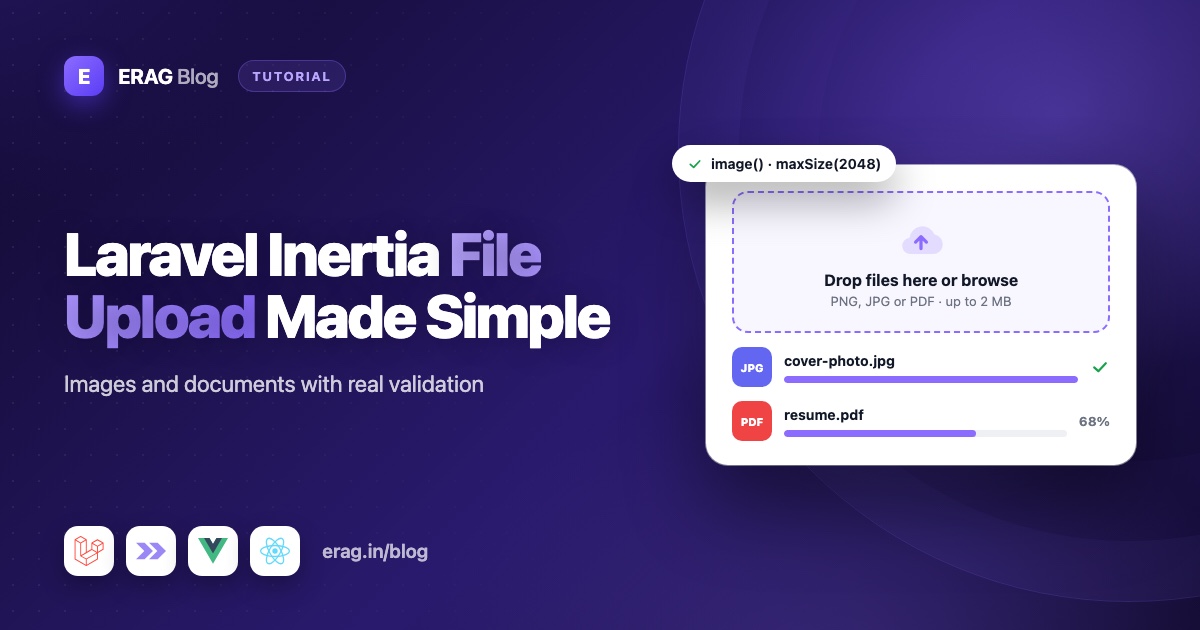
To upload files in a Laravel Inertia app, send the form as multipart/form-data, validate each file in Laravel, and save it with $file->store('folder', 'public'). With Laravel Inertia Forms you describe the upload as a FileUpload field in a PHP class. The package draws a drag-and-drop zone in Vue, React or Svelte, generates the validation rules and switches the request to multipart for you.
This guide builds a product form with one cover image, a gallery of several images and a PDF or Word spec sheet. Then it covers storing, showing and replacing those files on an edit screen.
The short version
- Install
erag/inertia-formsand the npm package for your frontend. - Add
FileUpload::make('cover')->image()->maxSize(2048)to your form class. - Use
multiple()andmaxFiles()for galleries, andaccept(['pdf', 'docx'])for documents. - In the controller, call
$file->store('products', 'public')and save the returned path. - Run
php artisan storage:linkonce, then show files withStorage::disk('public')->url($path). - On edit screens, don't make the file required, and only replace the file when a new one arrives.
What multipart/form-data means
When a browser sends a form, it has to pack the data into the request body somehow. Inertia normally sends JSON, which is great for text and numbers but can't carry the raw bytes of a photo.
multipart/form-data is a different packing format. It splits the body into parts, one per field. A text part holds a value like Desk lamp. A file part holds the file name, its type and the file's bytes. PHP reads those parts, puts the files in a temporary folder, and Laravel hands each one to you as an UploadedFile object.
You don't have to switch formats yourself. When a form contains at least one FileUpload field, the schema sets hasFiles to true and the <Form> component sends the request as multipart.
How to upload a single image in Laravel Inertia
First install the package. The installation guide also covers the one-line Tailwind @source setup.
composer require erag/inertia-forms
php artisan erag:install-inertia-forms
npm install @erag/inertia-forms-vue
Use @erag/inertia-forms-react or @erag/inertia-forms-svelte for the other frameworks. Then generate a form class with php artisan make:form ProductForm and fill it in:
<?php

namespace App\Forms;

use Erag\InertiaForms\Fields\FileUpload;
use Erag\InertiaForms\Fields\Submit;
use Erag\InertiaForms\Fields\TextInput;
use Erag\InertiaForms\Form;

class ProductForm extends Form
{
    protected ?string $actionRoute = 'products.store';

    public function fields(): array
    {
        $editing = $this->getModel() !== null;

        return [
            TextInput::make('name')->required()->maxLength(120),

            FileUpload::make('cover')
                ->label('Cover image')
                ->image()
                ->maxSize(2048)
                ->required(! $editing),

            FileUpload::make('gallery')
                ->multiple()
                ->image()
                ->accept(['jpg', 'jpeg', 'png', 'webp'])
                ->maxFiles(6)
                ->maxSize(4096),

            FileUpload::make('spec_sheet')
                ->label('Spec sheet')
                ->accept(['pdf', 'docx'])
                ->maxSize(5120)
                ->placeholder('Drop the PDF or Word file here')
                ->rule('mimes:pdf,docx'),

            Submit::make($editing ? 'Save product' : 'Create product')
                ->processingLabel('Uploading…'),
        ];
    }
}
The cover field is the single image. image() limits the file dialog to images, shows a thumbnail after the user picks one, and uses Laravel's image rule. maxSize(2048) is in kilobytes, so the limit is 2 MB, and the drop zone shows a hint like "up to 2.0 MB".
required(! $editing) makes the cover required when you create a product, but not when you edit one. More on that below.
The page that renders it is the same for every form:
<!-- resources/js/pages/Products/Form.vue -->
<script setup lang="ts">
import { Form, type FormSchema } from '@erag/inertia-forms-vue';

defineProps<{ form: FormSchema }>();
</script>

<template>
    <div class="mx-auto max-w-2xl p-6">
        <Form :form="form" />
    </div>
</template>
Users can drag a file onto the zone, click it, or press Enter or Space to open the file dialog. Each picked file shows its name, size and a remove button.
How to accept PDF and Word documents
The spec_sheet field uses accept(['pdf', 'docx']). That does two things: it filters the file dialog to those extensions and adds an extensions:pdf,docx rule. Leading dots are removed, so '.pdf' and 'pdf' mean the same thing. placeholder() changes the main text inside the drop zone.
An extension is only part of a file name, and anyone can rename virus.exe to specs.pdf. That's why the field also adds ->rule('mimes:pdf,docx'). Laravel's mimes rule looks at the file's actual content to guess its type, so a renamed file fails.
How to upload multiple files
The gallery field shows the multiple-upload pattern:
multiple()turns the value into an array of files. New picks are added to the list instead of replacing it.maxFiles(6)caps the list. Extra files beyond the limit are dropped in the browser, and the server checks it too.maxSize(4096)applies to each file, not the total.
Note 'jpg' and 'jpeg' in the list. They are separate extensions, and leaving one out rejects perfectly normal photos.
What validation rules are generated
Each field builds its own Laravel rules. Without required(), a field gets nullable, so an empty upload passes. Here is what ProductForm produces on the create screen:
| Key | Rules |
|---|---|
cover | required, image, max:2048 |
gallery | nullable, array, max:6 |
gallery.* | image, extensions:jpg,jpeg,png,webp, max:4096 |
spec_sheet | nullable, file, extensions:pdf,docx, max:5120, mimes:pdf,docx |
For a multiple field, the per-file rules sit on gallery.* and the count limit sits on gallery. Rules you add with rule() go on the main key, which is the list itself for gallery. So keep content checks like mimes on single-file fields, or add a gallery.* rule with $request->validate() in the controller.
When validation fails, Laravel redirects back and <Form> shows each message under its field. Errors for one file in a list, like gallery.2, appear under the gallery field. The post on one set of validation rules for Laravel and Inertia explains how the rest of the generated rules work.
How to save uploaded files with Laravel storage
Validated files arrive as UploadedFile objects. Here is the controller for the create screen:
<?php

namespace App\Http\Controllers;

use App\Forms\ProductForm;
use App\Models\Product;
use Erag\InertiaForms\Attributes\Validate;
use Illuminate\Http\RedirectResponse;
use Illuminate\Http\UploadedFile;
use Inertia\Inertia;
use Inertia\Response;

class ProductController extends Controller
{
    public function create(): Response
    {
        return Inertia::render('Products/Form', [
            'form' => ProductForm::make(),
        ]);
    }

    public function store(#[Validate] ProductForm $form): RedirectResponse
    {
        $data = $form->validated();

        $product = Product::create([
            'name' => $data['name'],
            'cover_path' => $data['cover']->store('products/covers', 'public'),
            'spec_sheet_path' => ($data['spec_sheet'] ?? null)?->store('products/specs', 'public'),
            'gallery' => collect($data['gallery'] ?? [])
                ->map(fn (UploadedFile $photo) => $photo->store('products/gallery', 'public'))
                ->all(),
        ]);

        return to_route('products.edit', $product);
    }
}
Register the routes inside your auth group. The update route is a put, which matters later:
use App\Http\Controllers\ProductController;

Route::middleware('auth')->group(function () {
    Route::get('products/create', [ProductController::class, 'create'])->name('products.create');
    Route::post('products', [ProductController::class, 'store'])->name('products.store');
    Route::get('products/{product}/edit', [ProductController::class, 'edit'])->name('products.edit');
    Route::put('products/{product}', [ProductController::class, 'update'])->name('products.update');
});
store('products/covers', 'public') saves the file on the public disk under a random, unique name and returns the path, like products/covers/9fJ3k...x.jpg. Save that path in the database, never the file itself. The random name also means two users uploading photo.jpg never overwrite each other.
You may also see storePublicly(). It stores the file with public visibility. On the public disk both give the same result, because that disk is already public. It matters on cloud disks like S3, where files are private by default.
The model only needs the path columns and an array cast for the gallery:
use Illuminate\Database\Eloquent\Attributes\Fillable;
use Illuminate\Database\Eloquent\Model;

#[Fillable(['name', 'cover_path', 'spec_sheet_path', 'gallery'])]
class Product extends Model
{
    protected function casts(): array
    {
        return ['gallery' => 'array'];
    }
}
How to show the saved image
Files on the public disk live in storage/app/public, which the browser can't reach. Create a link from public/storage to that folder once per machine:
php artisan storage:linkThen turn a stored path into a URL with Storage::disk('public')->url($path). The URL is built from APP_URL, so set that to your real local address, like http://my-app.test on Herd.
How to edit a record that already has a file
A file field always starts empty, even when you bind a model. The browser can't put an existing file back into a file input, so the package never sends saved files to the page. That has three effects on your edit screen.
Show the current file next to the form. Pass URLs as separate props. The next two methods go in the same ProductController, with Illuminate\Http\Request and Illuminate\Support\Facades\Storage imported:
public function edit(Product $product): Response
{
    return Inertia::render('Products/Form', [
        'form' => ProductForm::make()->route('products.update', $product)->bind($product),
        'coverUrl' => Storage::disk('public')->url($product->cover_path),
    ]);
}<script setup lang="ts">
import { Form, type FormSchema } from '@erag/inertia-forms-vue';
defineProps<{ form: FormSchema; coverUrl?: string }>();
</script>
<template>
<div class="mx-auto max-w-2xl space-y-6 p-6">
<div v-if="coverUrl" class="flex items-center gap-4">
<img :src="coverUrl" alt="Current cover image" class="size-24 rounded-lg object-cover" />
<p class="text-sm text-zinc-500">Upload a new cover below to replace it.</p>
</div>
<Form :form="form" />
</div>
</template>The React page is the same idea:
import { Form, type FormSchema } from '@erag/inertia-forms-react';

export default function ProductFormPage({ form, coverUrl }: { form: FormSchema; coverUrl?: string }) {
    return (
        <div className="mx-auto max-w-2xl space-y-6 p-6">
            {coverUrl && <img src={coverUrl} alt="Current cover image" className="size-24 rounded-lg object-cover" />}
            <Form form={form} />
        </div>
    );
}
Don't require the file again. If the cover stayed required() on edit, users would have to upload it every time they fix a typo. That's what required(! $editing) prevents.
Validate with the bound form. The #[Validate] attribute builds a fresh form with no model, so $editing would be false and the cover would be required again. Bind the model and validate by hand, and only replace a file when a new one arrives:
public function update(Request $request, Product $product): RedirectResponse
{
    $data = ProductForm::make()->bind($product)->validate($request);

    $product->name = $data['name'];

    if ($data['cover'] ?? null) {
        Storage::disk('public')->delete($product->cover_path);
        $product->cover_path = $data['cover']->store('products/covers', 'public');
    }

    foreach ($data['gallery'] ?? [] as $photo) {
        $product->gallery = [...($product->gallery ?? []), $photo->store('products/gallery', 'public')];
    }

    $product->save();

    return back();
}
Delete the old file when you replace it, or your disk fills up with images nothing points to.
Remember that the update route is a Route::put(). Browsers and PHP can't send multipart bodies with PUT, so <Form> sends a POST with a hidden _method=PUT field. Laravel routes it to your put route as usual. If you build the request yourself, do the same and pass forceFormData: true.
Test the upload with Pest
Laravel can fake both the disk and the file, so a test never touches real storage:
use App\Models\Product;
use App\Models\User;
use Illuminate\Http\UploadedFile;
use Illuminate\Support\Facades\Storage;

it('stores the cover image on the public disk', function () {
    Storage::fake('public');

    $this->actingAs(User::factory()->create())
        ->post(route('products.store'), [
            'name' => 'Desk lamp',
            'cover' => UploadedFile::fake()->image('lamp.jpg'),
        ])
        ->assertSessionHasNoErrors();

    Storage::disk('public')->assertExists(Product::first()->cover_path);
});
UploadedFile::fake()->image() needs PHP's GD extension. For a document, use UploadedFile::fake()->create('specs.pdf', 100, 'application/pdf').
Common problems and fixes
"The Cover image failed to upload"
PHP rejected the file before Laravel saw it. Raise upload_max_filesize (PHP's default is 2M) and post_max_size in php.ini. If the whole request is bigger than post_max_size, Laravel throws a PostTooLargeException and returns a 413 instead.
The saved image shows a 404
Run php artisan storage:link, and check that APP_URL matches the address in your browser. A wrong APP_URL builds URLs that point to a different host.
The edit form asks for the file again
The field is still required on edit, or the controller uses #[Validate] on update. Use required(! $editing) and validate with ProductForm::make()->bind($product)->validate($request).
Normal photos are rejected
Your accept() list has jpg but not jpeg, or the other way round. Add both.
Files are missing on a PUT request
A hand-written request sent a real PUT with a file. Send a POST with _method, as <Form> does.
Frequently asked questions
How do I upload a file with Inertia.js in Laravel?
Send the form as multipart/form-data, validate the file in the controller and save it with $file->store(). With Laravel Inertia Forms, a FileUpload field in the form class handles the multipart switch and the rules for you.
How do I upload multiple files in Laravel Inertia?
Add multiple() to the field, and optionally maxFiles() to cap the count. The value arrives as an array of UploadedFile objects, so loop over it and store each one.
How do I limit the file size?
Use maxSize() with a value in kilobytes, for example maxSize(5120) for 5 MB. It applies to each file. Also make sure PHP's upload_max_filesize and post_max_size are at least as large.
Why don't existing files show in the field on the edit page?
Browsers don't allow a page to fill a file input with an existing file. The field always starts empty, so show the current file next to the form and only replace it when the user picks a new one.
Can I upload SVG images?
Laravel's image rule rejects SVG by default, because an SVG file can contain scripts. For user uploads, that is the safe choice, so keep it that way.
Where should I store uploaded files?
Use the public disk for files anyone may see, like product photos. Use a private disk for documents only some users may open, and serve them through a controller that checks permission first.
Does this work with React and Svelte?
Yes. The PHP form class is the same. Only the npm package and the page component change.
Start uploading
Install the package and add your first FileUpload field:
composer require erag/inertia-forms
php artisan erag:install-inertia-forms
npm install @erag/inertia-forms-vue- File upload docs: erag.in/laravel-inertia-forms/fields/file-upload.html
- Model binding and edit screens: erag.in/laravel-inertia-forms/concepts/model-binding.html
- GitHub: eramitgupta/laravel-Inertia-forms
- New to the package? Start with building Inertia forms from a single PHP class, then see the admin CRUD form builder guide for full create and edit screens.
