
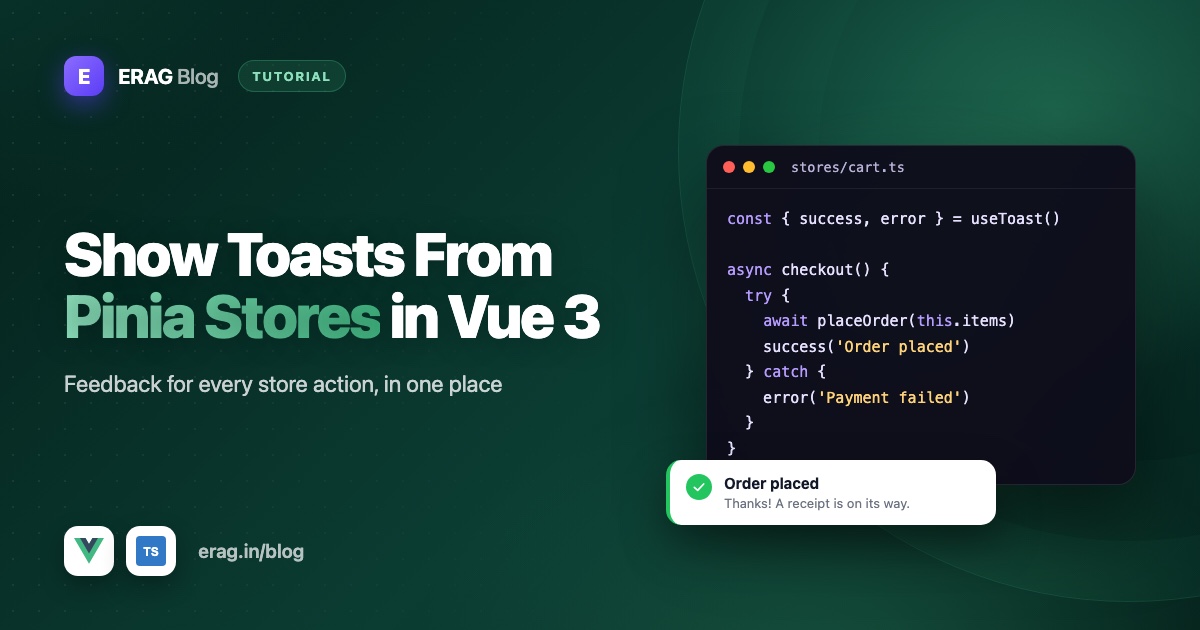
To show a toast notification from a Pinia store in Vue 3, register the @erag/vue-toastification plugin in main.ts, then call useToast() in your store and use success(), error(), warning() or info() inside your actions. It works outside components because useToast() reads shared module state instead of Vue's inject(), so there is no "must be called inside setup" problem. The plugin only has to be installed before the toast needs to appear on screen.
This guide uses Vue 3.5, Pinia and TypeScript. It builds a small shop cart with a checkout action, keeps every message in one file, prevents double toasts, and tests the store with the toast mocked.
The short version
- Install
@erag/vue-toastificationand register it withapp.use(ToastPlugin)inmain.ts, next to Pinia. - Put every message in one small
notifyhelper, so wording, titles and durations stay consistent. - Call
notify()inside store actions, in setup stores and option stores alike. - Wrap async actions in
try/catch/finallyand show one toast per outcome. - Guard actions with a state flag like
isCheckingOut, so a double click can't fire two requests and two toasts. - In tests, mock the package with
vi.mock()and assert which toast was shown. - Keep UI-only feedback, confirm dialogs and form errors in components.
Why show toasts from a Pinia store?
Picture a checkout action called from the cart page, a "Buy now" button and a mini cart in the header. If each component shows its own toast, you get three slightly different messages for the same event, and one place that forgets.
When the store owns the action, it also owns the result. "Order placed" or "Checkout failed" is part of what checkout() means, so checkout() should say it. Components stay small: they call the action and update their own UI. Not every toast belongs in a store, though; more on that further down.
Why useToast() works inside a Pinia store
Many Vue composables use inject() under the hood, and inject() only works while a component is being set up. Call one of those inside a Pinia action and you get a warning, or nothing at all.
useToast() in @erag/vue-toastification is different. The package keeps its toast list in one reactive object at the module level, and useToast() returns functions that push to that list. The plugin, when you install it, adds a toast area to document.body that renders the same list. I checked this in the package source (src/composables/useToast.ts), and it's what makes calls from stores, router guards and plain .ts files safe.
There is one rule: install the plugin before you expect a toast to appear. Calling success() before app.use(ToastPlugin) doesn't throw. The toast simply lands in a list that nothing is showing yet.
Can you use composables inside a Pinia store?
Yes, but where you call them matters. The official Pinia guide to composables has the details. Here is the short version:
| Where you call it | What works |
|---|---|
The body of a setup store (the function you pass to defineStore) | Almost any composable. You can also inject() values provided at the app level, like the router. |
state() in an option store | Only composables that return writable state, like a ref() |
| Inside an action | Plain functions are safe. Anything that calls inject() fails when the action runs from a click, a timer or after an await, because no component is being set up at that moment. |
That last row is where most toast problems come from. A toast composable that reads its state with inject() logs inject() can only be used inside setup() or functional components when you call it inside an action, and nothing shows. The usual fixes are to call it once in the setup store body and use the result in your actions, or to pass it into the action as an argument.
useToast() from @erag/vue-toastification needs neither fix. It never calls inject(), so it works in setup stores, option stores, and even at the top of a plain .ts file, which is exactly what the notify helper below does.
Step 1: Register Pinia and the toast plugin
npm install pinia @erag/vue-toastificationIn src/main.ts:
import { createApp } from 'vue';
import { createPinia } from 'pinia';
import ToastPlugin from '@erag/vue-toastification';
import '@erag/vue-toastification/dist/style.css';
import App from './App.vue';

const app = createApp(App);

app.use(createPinia());
app.use(ToastPlugin, { position: 'top-right' });

app.mount('#app');
Set the position once, here. You can pass a position to a single toast too, but that moves the shared toast area, so every toast after it shows in the new corner. One global position keeps things predictable.
Step 2: Keep messages consistent with a notify helper
Before writing the store, give your messages a home. Create src/lib/notify.ts:
import { useToast, type ToastType } from '@erag/vue-toastification';

export type Notice = {
    type: ToastType;
    title: string;
    message: string;
};

const durations: Record<ToastType, number> = {
    success: 4000,
    info: 4000,
    warning: 6000,
    error: 8000,
};

const toast = useToast();

export function notify(notice: Notice): void {
    toast[notice.type](notice.message, notice.title, durations[notice.type]);
}

export const notices = {
    addedToCart: (name: string): Notice => ({
        type: 'success',
        title: 'Added to cart',
        message: `${name} is in your cart.`,
    }),
    removedFromCart: (name: string): Notice => ({
        type: 'info',
        title: 'Removed',
        message: `${name} was removed from your cart.`,
    }),
    stockLimit: (name: string, stock: number): Notice => ({
        type: 'warning',
        title: 'Not enough stock',
        message: `Only ${stock} of ${name} left.`,
    }),
    emptyCart: (): Notice => ({
        type: 'warning',
        title: 'Your cart is empty',
        message: 'Add something before you check out.',
    }),
    orderPlaced: (orderNumber: string): Notice => ({
        type: 'success',
        title: 'Order placed',
        message: `Order ${orderNumber} is confirmed.`,
    }),
    checkoutFailed: (): Notice => ({
        type: 'error',
        title: 'Checkout failed',
        message: 'We could not place your order. Please try again.',
    }),
    couponApplied: (code: string, percentOff: number): Notice => ({
        type: 'success',
        title: 'Coupon applied',
        message: `${code} takes ${percentOff}% off your order.`,
    }),
    connectionProblem: (): Notice => ({
        type: 'error',
        title: 'Connection problem',
        message: 'Check your connection and try again.',
    }),
};
This file is tiny, but it does three useful things:
- One voice. Every "added" message reads the same way, with the same title, wherever it comes from.
- One duration policy. Errors stay on screen longer than successes, because people need time to read what went wrong. You decide that once, not in every action.
- Easy changes. When marketing wants "basket" instead of "cart", you edit one file.
toast[notice.type] picks the matching method, so a notice with type: 'error' calls toast.error(). ToastType is exported by the package, so TypeScript knows only the four real types are allowed.
Step 3: Show toasts from a setup store
First, a couple of shared types in src/types/shop.ts:
export type Product = {
    id: number;
    name: string;
    priceInCents: number;
    stock: number;
};

export type CartItem = {
    product: Product;
    quantity: number;
};

export type Order = {
    number: string;
};
And the API call in src/api/orders.ts. It throws when the server says no, so the store can catch it:
import type { CartItem, Order } from '@/types/shop';

export async function placeOrder(items: CartItem[]): Promise<Order> {
    const response = await fetch('/api/orders', {
        method: 'POST',
        headers: { 'Content-Type': 'application/json', Accept: 'application/json' },
        body: JSON.stringify({
            items: items.map((item) => ({
                product_id: item.product.id,
                quantity: item.quantity,
            })),
        }),
    });

    if (!response.ok) {
        throw new Error(`Checkout failed with status ${response.status}`);
    }

    return (await response.json()) as Order;
}
This keeps error handling simple on purpose. If you want friendly messages for each HTTP status, like 401, 422 and 500, see how to show API error messages as toasts in Vue 3.
Now the store, src/stores/cart.ts:
import { defineStore } from 'pinia';
import { computed, ref } from 'vue';
import { placeOrder } from '@/api/orders';
import { notices, notify } from '@/lib/notify';
import type { CartItem, Product } from '@/types/shop';

export const useCartStore = defineStore('cart', () => {
    const items = ref<CartItem[]>([]);
    const isCheckingOut = ref(false);

    const count = computed(() =>
        items.value.reduce((total, item) => total + item.quantity, 0),
    );

    const totalInCents = computed(() =>
        items.value.reduce((total, item) => total + item.product.priceInCents * item.quantity, 0),
    );

    function addItem(product: Product): void {
        const existing = items.value.find((item) => item.product.id === product.id);
        const quantity = (existing?.quantity ?? 0) + 1;

        if (quantity > product.stock) {
            notify(notices.stockLimit(product.name, product.stock));

            return;
        }

        if (existing) {
            existing.quantity = quantity;
        } else {
            items.value.push({ product, quantity });
        }

        notify(notices.addedToCart(product.name));
    }

    function removeItem(productId: number): void {
        const item = items.value.find((entry) => entry.product.id === productId);

        if (!item) {
            return;
        }

        items.value = items.value.filter((entry) => entry.product.id !== productId);
        notify(notices.removedFromCart(item.product.name));
    }

    async function checkout(): Promise<string | null> {
        if (isCheckingOut.value) {
            return null;
        }

        if (items.value.length === 0) {
            notify(notices.emptyCart());

            return null;
        }

        isCheckingOut.value = true;

        try {
            const order = await placeOrder(items.value);

            items.value = [];
            notify(notices.orderPlaced(order.number));

            return order.number;
        } catch (error) {
            console.error(error);
            notify(notices.checkoutFailed());

            return null;
        } finally {
            isCheckingOut.value = false;
        }
    }

    return { items, isCheckingOut, count, totalInCents, addItem, removeItem, checkout };
});
A few choices worth explaining:
- The toast comes after the state change. In
addItem(), the cart updates first, then "Added to cart" shows. If the toast came first and something below it failed, the message would be a lie. - One toast per outcome.
checkout()ends in exactly one of three toasts: empty cart, order placed or checkout failed. Thefinallyblock resets the loading flag whatever happens, so the button never stays stuck. - The cart survives a failure. Items are cleared only after the order succeeds. If the request fails, people can just try again.
- The action returns a result.
checkout()returns the order number ornull. The store reports what happened, and the component decides what to do next, like moving to a confirmation page. isCheckingOutblocks double runs. The first line returns early if a checkout is already in progress. More on that in the duplicates section.
Step 4: The same pattern in an option store
Option stores work the same way. Inside actions, you use this to reach state. Here is a coupon store in src/stores/coupon.ts, using a checkCoupon() API helper that returns the coupon, null for an unknown code, or throws when the request fails:
import { defineStore } from 'pinia';
import { checkCoupon } from '@/api/coupons';
import { notices, notify } from '@/lib/notify';

export const useCouponStore = defineStore('coupon', {
    state: () => ({
        code: null as string | null,
        percentOff: 0,
        error: null as string | null,
        isApplying: false,
    }),

    actions: {
        async apply(input: string): Promise<boolean> {
            const code = input.trim().toUpperCase();

            if (code === '' || this.isApplying) {
                return false;
            }

            this.isApplying = true;
            this.error = null;

            try {
                const coupon = await checkCoupon(code);

                if (coupon === null) {
                    this.error = 'That code is not valid or has expired.';

                    return false;
                }

                this.code = coupon.code;
                this.percentOff = coupon.percentOff;
                notify(notices.couponApplied(coupon.code, coupon.percentOff));

                return true;
            } catch (error) {
                console.error(error);
                notify(notices.connectionProblem());

                return false;
            } finally {
                this.isApplying = false;
            }
        },
    },
});
Notice what doesn't get a toast: a wrong coupon code. That's a form error. The person is looking at the coupon field, so the store saves the message in error and the component shows it right under the input. Toasts are for results, like "Coupon applied", and for problems the person can't see, like a dropped connection.
Step 5: Use the store in a component
src/components/CartSummary.vue calls the action and handles navigation. It doesn't import the toast package at all:
<script setup lang="ts">
import { storeToRefs } from 'pinia';
import { useRouter } from 'vue-router';
import { useCartStore } from '@/stores/cart';

const cart = useCartStore();
const { count, totalInCents, isCheckingOut } = storeToRefs(cart);
const router = useRouter();

const money = new Intl.NumberFormat('en-GB', { style: 'currency', currency: 'GBP' });

async function placeOrder() {
    const orderNumber = await cart.checkout();

    if (orderNumber) {
        await router.push({ name: 'order-confirmation', params: { number: orderNumber } });
    }
}
</script>

<template>
    <div class="flex items-center justify-between gap-4 rounded-lg border p-4">
        <p>{{ count }} items, {{ money.format(totalInCents / 100) }}</p>
        <button
            type="button"
            :disabled="isCheckingOut || count === 0"
            @click="placeOrder"
        >
            {{ isCheckingOut ? 'Placing order...' : 'Place order' }}
        </button>
    </div>
</template>
storeToRefs() keeps count, totalInCents and isCheckingOut reactive after destructuring. Actions like checkout() are called on the store itself.
Because the toast lives in the store, the "Order placed" toast is still on screen after the router moves to the confirmation page. The toast area sits on document.body, outside your page components, so a route change doesn't remove it.
How to avoid duplicate toasts from Pinia actions
Two identical toasts for one click look broken. In Pinia apps, they usually come from one of these:
- Double clicks and double callers. Disabling the button isn't enough. A fast double click, the Enter key, or two components can still call the action twice. The
isCheckingOutcheck at the top ofcheckout()stops the second call inside the store, where it counts. - Two owners. The store shows "Order placed" and the component shows "Thanks for your order!" too. Pick one owner per message. If the store owns the action, the component stays quiet.
- Toasts in
$subscribe()orwatch(). A watcher onitemsfires on every change, including when you restore a saved cart on page load or empty the store in code. Show toasts from actions, where you know why the state changed. - Actions calling actions. If
checkout()called aclear()action that toasts "Cart cleared", people would see two toasts for one checkout. Let the outer action speak, and keep inner helpers silent. - Catching and rethrowing. If an action shows an error toast and then throws again, a global error handler can show a second one. Either handle the error in the action or let it bubble up, not both.
If many different requests can fail at the same moment, for example when the server goes down, the API error toasts guide adds a short time-based guard that merges identical messages.
Catch unexpected errors from every store with $onAction
You will forget a try/catch somewhere. A tiny Pinia plugin can catch any action that throws and show a general message. Create src/plugins/pinia-error-toasts.ts:
import type { PiniaPluginContext } from 'pinia';
import { notify } from '@/lib/notify';

export function piniaErrorToasts({ store }: PiniaPluginContext): void {
    store.$onAction(({ name, onError }) => {
        onError((error) => {
            console.error(`[${store.$id}] ${name} failed`, error);

            notify({
                type: 'error',
                title: 'Something went wrong',
                message: 'Please try again. If it keeps happening, refresh the page.',
            });
        });
    });
}
Register it in main.ts:
const pinia = createPinia();
pinia.use(piniaErrorToasts);
app.use(pinia);
$onAction() runs for every action in every store. Its onError callback fires only when an action throws or returns a rejected promise. checkout() catches its own errors, so it shows its specific "Checkout failed" message and the plugin stays quiet. Anything you forgot to handle gets the general message instead of failing silently. The error still reaches the caller, so a component that awaits the action should still expect it can fail.
When the toast belongs in the component instead
Stores are a good home for messages about what an action did. They're the wrong home for messages about what's on screen.
| Put the toast in the store when... | Put it in the component when... |
|---|---|
| It describes the action's result, like "Order placed" | It's about the UI, like "Link copied" |
| Every caller should show the same message | Two screens need different wording for the same action |
| The action is called from several places | The action also runs silently, like a background sync |
| The person needs to know even if they navigate away | It's a form error, which belongs under the field |
Confirm dialogs belong in components too. The package's useConfirmation() would technically work in a store, but asking "Remove all items?" is a decision the screen makes, so ask in the component and call the action after the person agrees. The guide to a Vue confirm modal you can await shows that pattern.
A good test: if you can imagine calling the action from a scheduled job or a test with no screen at all, and the message still makes sense, it belongs in the store.
Do you need your own notification store in Pinia?
For toasts, no. Many tutorials build a notifications store by hand: an array in state, an action that pushes to it, a setTimeout that removes each item, and a container component that loops over the list with v-for. The package already does all four. It keeps the list, removes each toast after its duration, and renders the container on document.body. Your stores only call it.
A Pinia store is still the right tool for notifications that should stay: an inbox with an unread count, a bell menu, or a history people can open later. That's different data from a toast, which is gone after a few seconds. Keep the two apart. Save the record in a store, and show a toast when something new arrives:
import { defineStore } from 'pinia';
import { computed, ref } from 'vue';
import { notify } from '@/lib/notify';

type InboxMessage = {
    id: number;
    subject: string;
    readAt: string | null;
};

export const useInboxStore = defineStore('inbox', () => {
    const messages = ref<InboxMessage[]>([]);
    const unreadCount = computed(() => messages.value.filter((message) => message.readAt === null).length);

    function receive(message: InboxMessage): void {
        messages.value.unshift(message);
        notify({ type: 'info', title: 'New message', message: message.subject });
    }

    return { messages, unreadCount, receive };
});
The badge reads unreadCount from the store, and the toast is just the short heads-up. If the toast disappears before anyone sees it, the message is still waiting in the inbox.
How to test a Pinia store with the toast mocked
You don't want real toasts in unit tests. You want to know which toast the store tried to show. Vitest's vi.mock() replaces the package with fake functions. Here is src/stores/__tests__/cart.spec.ts:
import { createPinia, setActivePinia } from 'pinia';
import { beforeEach, describe, expect, it, vi } from 'vitest';
import { placeOrder } from '@/api/orders';
import { useCartStore } from '@/stores/cart';

const toast = vi.hoisted(() => ({
    success: vi.fn(),
    error: vi.fn(),
    warning: vi.fn(),
    info: vi.fn(),
}));

vi.mock('@erag/vue-toastification', () => ({
    useToast: () => toast,
}));

vi.mock('@/api/orders', () => ({
    placeOrder: vi.fn(),
}));

const lamp = { id: 1, name: 'Desk lamp', priceInCents: 2450, stock: 2 };

describe('cart store', () => {
    beforeEach(() => {
        setActivePinia(createPinia());
        vi.clearAllMocks();
    });

    it('shows a success toast when an item is added', () => {
        const cart = useCartStore();

        cart.addItem(lamp);

        expect(toast.success).toHaveBeenCalledWith(
            'Desk lamp is in your cart.',
            'Added to cart',
            expect.any(Number),
        );
    });

    it('warns instead of going over the stock', () => {
        const cart = useCartStore();

        cart.addItem(lamp);
        cart.addItem(lamp);
        cart.addItem(lamp);

        expect(cart.count).toBe(2);
        expect(toast.warning).toHaveBeenCalledOnce();
    });

    it('keeps the cart and shows an error when checkout fails', async () => {
        vi.mocked(placeOrder).mockRejectedValue(new Error('Server error'));
        vi.spyOn(console, 'error').mockImplementation(() => {});
        const cart = useCartStore();
        cart.addItem(lamp);

        await cart.checkout();

        expect(cart.items).toHaveLength(1);
        expect(toast.error).toHaveBeenCalledOnce();
    });

    it('places only one order on a double click', async () => {
        vi.mocked(placeOrder).mockResolvedValue({ number: 'A1002' });
        const cart = useCartStore();
        cart.addItem(lamp);

        await Promise.all([cart.checkout(), cart.checkout()]);

        expect(placeOrder).toHaveBeenCalledOnce();
        expect(toast.success).toHaveBeenLastCalledWith(
            'Order A1002 is confirmed.',
            'Order placed',
            expect.any(Number),
        );
    });
});
What's going on here:
vi.mock()runs before any import, so the faketoastobject is created withvi.hoisted(), which runs early enough for the mock to use it.- The mock replaces
useToast()everywhere, including insidenotify.ts. The store's real code runs; only the screen output is fake. setActivePinia(createPinia())gives every test a fresh store, andvi.clearAllMocks()resets the call counts.- No browser needed. The mock never touches
document, so these tests run in Vitest's default Node environment.
The last test is the one I'd keep forever. It proves the double-click guard works: two calls, one request, one toast.
Testing components instead of stores? Mount them with createTestingPinia() from the official @pinia/testing package. It stubs every action by default, which is handy when you only want to check that a button calls checkout(). Pass stubActions: false to run the real actions, and keep the vi.mock() above so the toast stays fake. If you don't use Vitest's globals option, also pass createSpy: vi.fn. The Pinia testing guide covers the rest.
Common problems and fixes
Nothing appears when the store calls a toast
The plugin isn't registered, or it's registered in a different app instance. Check that app.use(ToastPlugin) runs in main.ts before app.mount(). If the toasts appear but look like plain text, the @erag/vue-toastification/dist/style.css import is missing.
"inject() can only be used inside setup() or functional components"
Something inside an action calls inject(), usually through another composable. Call that composable once in the body of a setup store and use the result in the action, or pass the value in as an argument. useToast() from @erag/vue-toastification never triggers this warning, so if you see it, look at the other composables your action uses.
"getActivePinia() was called but there was no active Pinia"
You used a store before app.use(createPinia()), often at the top level of a module like a router file. Call useCartStore() inside a function, such as the guard itself, not when the file loads. In tests, call setActivePinia(createPinia()) in beforeEach.
One click shows two toasts
Look for two owners (the store and the component both toast), a toast inside a watch() or $subscribe(), or an action that runs twice. The duplicates section above walks through each one.
Toasts jump to a different corner
Somewhere, a toast was given its own position, and that moved the shared toast area for all later toasts. Remove per-toast positions and set one in main.ts.
The store test fails with "document is not defined"
The test imported the real plugin, often through main.ts. Mock @erag/vue-toastification in the test file, and import the store directly instead of the whole app.
Frequently asked questions
Can I call useToast() inside a Pinia store?
Yes. useToast() from @erag/vue-toastification uses shared module state, not inject(), so it works in setup stores, option stores, router guards and plain TypeScript files. The plugin must be installed in main.ts for the toasts to appear.
Can I use composables inside a Pinia store?
Yes. In a setup store, you can call almost any composable in the store's body, including ones that inject() app-level values like the router. In an option store, only composables that return writable state work, and only inside state(). Inside actions, avoid anything that calls inject(), because it fails when the action runs from a click or after an await.
Do I need a Pinia notification store to show toasts?
No. The toast package already keeps the list of toasts, removes each one after its duration, and renders them, so your stores just call useToast(). Build a Pinia store only for notifications that must stay, like an inbox with an unread count.
How do I show a toast from a Vue Router guard?
Call your notify helper or useToast() inside the guard, then return the redirect. For example, a beforeEach guard can show "Please sign in to continue" and return { name: 'login' }. The toast area sits outside your pages, so the message stays visible after the route changes.
Should a Pinia action show a toast or return an error?
Often both jobs are split. The action shows the toast for its result and returns a simple value, like an order number or null. The component uses that value to decide what to do next, like moving to another page.
How do I show a toast after an async Pinia action finishes?
Put the await inside a try block and call the toast after it succeeds. Show the error toast in catch, and reset loading flags in finally. That way every run ends in exactly one message.
How do I test a Pinia store that shows toasts?
Mock the package with vi.mock('@erag/vue-toastification', ...) and return fake success, error, warning and info functions. Create a fresh Pinia with setActivePinia(createPinia()) before each test, call the action, and assert which fake function was called.
Where should form validation errors go?
Under the field, not in a toast. Save the message in store state, like the coupon store's error, and show it next to the input. Keep toasts for results and for problems the person can't see on the page.
Can I use this in a server-rendered Vue app?
The plugin adds its toast area to document.body when installed, so install it only in the browser. Keep toast calls in actions that run after a user does something, not in code that also runs on the server.
Give every store a clear voice
With one notify helper and toasts inside your actions, every part of your Vue 3 app reports results the same way, whichever component triggered them. Your components stay small, and your tests check messages without a browser.
npm install @erag/vue-toastification- Documentation: erag.in/vue-toastification, including setup, toast usage and the API reference
- GitHub: eramitgupta/vue-toastification. A star helps other developers find it.
- Related: new to the package? Start with Vue 3 toast notifications without the bloat, then read toast notification UX best practices before you write your messages.
