
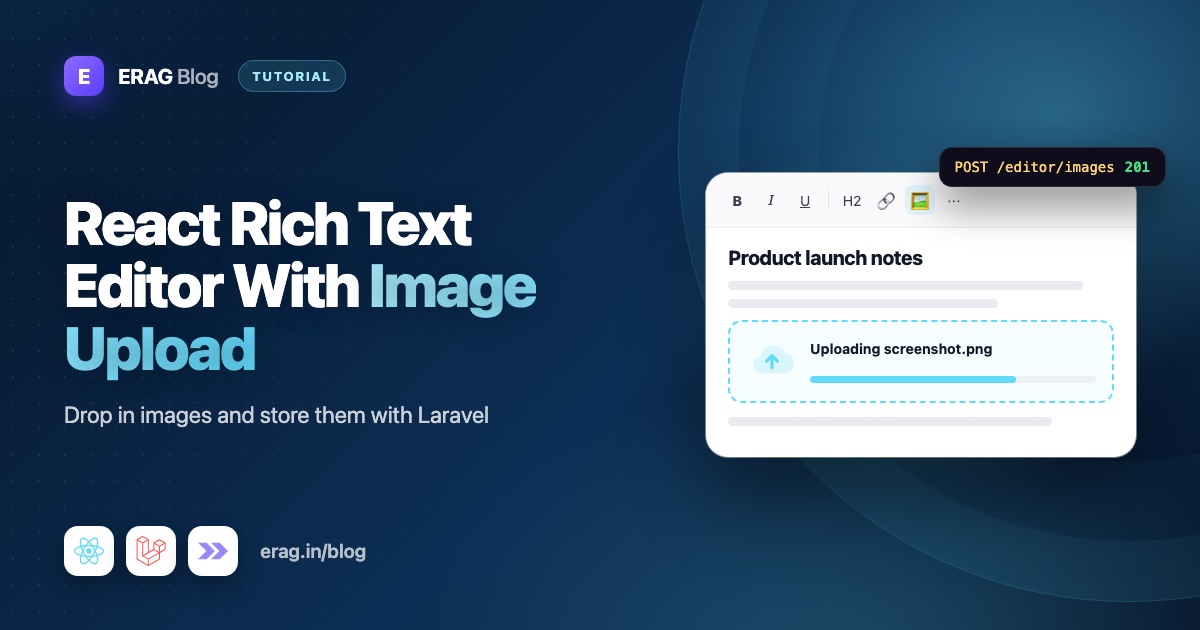
To add image upload to a React rich text editor, pass an imagesUploadHandler in the init prop of the Editor component from @erag/text-editor-react. The handler sends the file to a Laravel route, Laravel validates it, stores it on the public disk and returns its URL, and the editor inserts an image with that URL. The editor never uploads anything until you give it a handler or an upload URL, so you decide where files go and what is allowed.
The short version
- Install
@erag/text-editor-reactand import its stylesheet. - Add a Laravel route, a Form Request (
image,mimes,max) and a controller that returns{ "url": "..." }. - Write an
ImagesUploadHandlerthat sends the file with Inertia'suseHttpand returns the URL. - Pass it as
imagesUploadHandlerininit, withacceptedFormatsandmaxImageSizematching your server rules. - Add an
imagesDeleteHandlerif removing an image should delete the file too. - Sanitize the saved HTML on the server.
How image upload works in the React editor
The image toolbar button opens a small upload card at the cursor. From that card a user can choose a file, drop a file onto it, or insert an image by URL. They can also paste an image straight into the text when paste uploads are on.
Before anything leaves the browser, the editor checks the file's type against acceptedFormats and its size against maxImageSize. Then it calls your handler with two things: an ImageBlobInfo object (with blob(), filename() and a few other helpers) and a progress callback. Your handler returns the final URL as a string.
- Return a URL and the image is inserted at the cursor.
- Throw an error and nothing is inserted. The upload card stays open with an error, so users never see a half-inserted broken image.
Once an image is in the document, clicking it shows four corner handles for resizing (the aspect ratio is kept), and the alignment buttons align it.
Here are the image options you will use most, all from the configuration reference:
| Option | Default | What it does |
|---|---|---|
imagesUploadHandler | none | Your upload function. Gets the file, returns the URL. |
imagesUploadUrl | none | Endpoint for the built-in Fetch uploader, if you prefer no handler code. |
imagesDeleteHandler | none | Runs before an image is removed, so you can delete the file. |
acceptedFormats | JPEG, PNG, WebP, GIF | Allowed MIME types. |
maxImageSize | 5 * 1024 * 1024 | Largest file in bytes. |
automaticUploads | true | Uploads chosen or pasted files right away. |
pasteImages | true | Accepts image files from the clipboard. |
imageFilePicker / imageUrlInput | true | Shows file choosing and URL insertion in the upload card. |
imageDefaultWidth | 640 | Largest width for a newly inserted image, in pixels. |
Step 1: Install the editor
npm install @erag/text-editor-reactReact 18 and React 19 both work. Import the stylesheet once in resources/js/app.tsx. It styles the toolbar, the upload card and the resize handles:
import '@erag/text-editor-react/style.css';Step 2: Build the Laravel upload endpoint
First, make the public disk reachable from the browser:
php artisan storage:linkValidation lives in a Form Request. This one is taken from the Laravel integration guide:
<?php

namespace App\Http\Requests;

use Illuminate\Foundation\Http\FormRequest;

class StoreEditorImageRequest extends FormRequest
{
    public function authorize(): bool
    {
        return true;
    }

    public function rules(): array
    {
        return [
            'file' => ['required', 'image', 'mimes:jpeg,png,webp,gif', 'max:5120'], // 5MB max
        ];
    }
}
Each rule has a job:
imagechecks that the file really is an image. In current Laravel versions it rejects SVG by default, because an SVG can carry scripts. Keep it that way.mimeslimits the allowed formats to the same four the editor accepts.max:5120is in kilobytes, so it means 5 MB. The editor'smaxImageSizeis in bytes.5 * 1024 * 1024andmax:5120are the same limit written two ways.
The controller stores the file and returns its URL:
<?php

namespace App\Http\Controllers;

use App\Http\Requests\StoreEditorImageRequest;
use Illuminate\Http\JsonResponse;

class EditorImageController extends Controller
{
    public function __invoke(StoreEditorImageRequest $request): JsonResponse
    {
        $path = $request->file('file')->storePublicly('editor-images', 'public');

        return response()->json([
            'url' => asset("storage/{$path}"),
        ]);
    }
}
storePublicly() gives the file a random name, so a user can't pick the path or overwrite another file. The response looks like {"url":"https://your-app.test/storage/editor-images/8fK2...jpg"}. Your handler turns it into a plain string, so the exact shape is up to you.
Register the routes behind auth in routes/web.php. We will write the delete controller in Step 5:
use App\Http\Controllers\DeleteEditorImageController;
use App\Http\Controllers\EditorImageController;

Route::middleware(['auth', 'verified'])->group(function () {
    Route::post('editor-images', EditorImageController::class)->name('editor-images.store');
    Route::delete('editor-images', DeleteEditorImageController::class)->name('editor-images.destroy');
});
authorize() returns true because the auth middleware already blocks guests.
Step 3: Write the upload handler with useHttp
In an Inertia v3 React app, useHttp is the cleanest way to send the file. It reports real upload progress, and it sends Laravel's XSRF token for you. Wayfinder gives you typed controller actions, so there are no hard-coded URLs.
Put the handlers in a small hook, resources/js/hooks/use-editor-images.ts, so every page with an editor can reuse them:
import type { ImagesDeleteHandler, ImagesUploadHandler } from '@erag/text-editor-react';
import { useHttp } from '@inertiajs/react';
import DeleteEditorImageController from '@/actions/App/Http/Controllers/DeleteEditorImageController';
import EditorImageController from '@/actions/App/Http/Controllers/EditorImageController';

interface ImageUploadRequest {
    file: Blob | null;
}

interface ImageUploadResponse {
    url: string;
}

export function useEditorImages(): {
    uploadEditorImage: ImagesUploadHandler;
    deleteEditorImage: ImagesDeleteHandler;
} {
    const imageUpload = useHttp<ImageUploadRequest, ImageUploadResponse | undefined>({
        file: null,
    });
    const imageDelete = useHttp<{ src: string }, { message: string } | undefined>({
        src: '',
    });

    const uploadEditorImage: ImagesUploadHandler = async (blobInfo, progress) => {
        const blob = blobInfo.blob();
        imageUpload.setData(
            'file',
            blob instanceof File
                ? blob
                : new File([blob], blobInfo.filename(), { type: blob.type }),
        );

        try {
            const response = await imageUpload.submit(EditorImageController(), {
                onProgress: (uploadProgress) => {
                    progress(uploadProgress.percentage ?? 0);
                },
            });

            if (!response?.url) {
                throw new Error('The image upload response did not return a valid URL.');
            }

            progress(100);

            return response.url;
        } finally {
            imageUpload.setData('file', null);
            imageUpload.setDefaults({ file: null });
        }
    };

    const deleteEditorImage: ImagesDeleteHandler = async (image) => {
        imageDelete.setData('src', image.src);

        const response = await imageDelete.submit(DeleteEditorImageController());

        if (!response) {
            throw new Error('The image could not be removed.');
        }
    };

    return { uploadEditorImage, deleteEditorImage };
}
Three details make this work:
setDatatakes effect right away for the nextsubmit(), so the file is in the request even though React hasn't re-rendered yet.- A 422 doesn't throw. When Laravel returns a validation error,
useHttpstores the errors and resolves withundefined. Theresponse?.urlcheck turns that into a thrown error, which is what tells the editor the upload failed. - The
finallyblock clears the file, so a large image doesn't stay in memory after the upload.
Step 4: Use the editor in an Inertia page
Now wire it into a page, for example resources/js/pages/posts/create.tsx. The editor is controlled with value and onChange, and the HTML lives in useForm:
import { Editor } from '@erag/text-editor-react';
import type { EditorInit } from '@erag/text-editor-react';
import { Head, useForm } from '@inertiajs/react';
import type { FormEvent } from 'react';
import InputError from '@/components/input-error';
import { Button } from '@/components/ui/button';
import { useEditorImages } from '@/hooks/use-editor-images';
import { store } from '@/routes/posts';

export default function CreatePost() {
    const { data, setData, submit, processing, errors } = useForm({ body: '' });
    const { uploadEditorImage, deleteEditorImage } = useEditorImages();

    const editorConfig: EditorInit = {
        height: 480,
        acceptedFormats: ['image/jpeg', 'image/png', 'image/webp', 'image/gif'],
        maxImageSize: 5 * 1024 * 1024,
        automaticUploads: true,
        pasteImages: true,
        imageDefaultWidth: 640,
        imagesUploadHandler: uploadEditorImage,
        imagesDeleteHandler: deleteEditorImage,
    };

    function save(event: FormEvent<HTMLFormElement>): void {
        event.preventDefault();
        submit(store());
    }

    return (
        <>
            <Head title="New post" />

            <form className="space-y-4 p-4" onSubmit={save}>
                <Editor
                    value={data.body}
                    onChange={(value) => setData('body', value)}
                    init={editorConfig}
                    disabled={processing}
                    ariaLabel="Post body"
                />
                <InputError message={errors.body} />

                <Button type="submit" disabled={processing}>
                    Save post
                </Button>
            </form>
        </>
    );
}
store() is the Wayfinder function for your own posts.store route. Swap in whatever route saves your content.
You might expect to need useMemo for editorConfig. You don't. The editor compares init by structure and ignores functions when it checks for changes, and it always calls the latest handler you passed. Building the object on every render is fine. The React WYSIWYG editor guide covers the other props.
Which upload approach should you use?
The editor has two ways to upload, and a handler can use any request code you like:
| Approach | Upload progress | Best for |
|---|---|---|
imagesUploadHandler with Inertia useHttp | Real percentage through onProgress | Inertia React apps (this post) |
imagesUploadHandler with fetch | Only what you report yourself | React apps without Inertia |
imagesUploadUrl (built-in uploader) | A loading state until it finishes | Quick setups with no handler code |
With imagesUploadUrl, the editor posts the file itself under uploadFieldName (default 'file', which matches the Form Request). For a Laravel route in web.php, add the X-XSRF-TOKEN header through uploadHeaders, and use resolveUploadedImageUrl to read the URL from your response. Never set Content-Type yourself. The browser has to add the multipart boundary.
Step 5: Delete removed images from storage
Select an image and its overlay shows a delete button. What happens next depends on your config:
- No delete handler: only the HTML is removed. The file stays on disk.
imagesDeleteHandler: the editor waits for your function. If it throws, the image stays in the document, so the content and the disk never disagree.onImageRemoveprop: called once, after a successful removal, withsrc,alt,widthandheight. Good for logging or queueing a cleanup job.
The hook above already throws when the server says no. Here is a delete controller that only touches files in the editor-images folder:
<?php

namespace App\Http\Controllers;

use Illuminate\Http\JsonResponse;
use Illuminate\Http\Request;
use Illuminate\Support\Facades\Storage;
use Illuminate\Support\Str;

class DeleteEditorImageController extends Controller
{
    public function __invoke(Request $request): JsonResponse
    {
        $validated = $request->validate([
            'src' => ['required', 'string'],
        ]);

        $path = Str::after($validated['src'], '/storage/');

        abort_unless(Str::startsWith($path, 'editor-images/') && ! Str::contains($path, '..'), 422);

        Storage::disk('public')->delete($path);

        return response()->json(['message' => 'Image removed successfully.']);
    }
}
The src comes from the browser, so treat it as user input. Without the folder check, a crafted request could delete any file on your public disk. In an app with many authors, also record who uploaded each image and check that here.
One warning: deleting right away is great for drafts but risky for published content. If someone removes an image while editing a live post and then leaves without saving, the live post now points at a deleted file. The Vue image upload guide explains a safer cleanup job for that case. The trade-off is the same in React.
Drag, drop and paste
- Drop: users can drop a file onto the upload card that the image button opens.
- Paste: when
pasteImagesandautomaticUploadsare bothtrue, pasted image files go through your handler like any other upload. What the clipboard holds varies by browser and permissions. - Pasted HTML from other sites is sanitized and inserted once.
To allow only linked images, set imageFilePicker: false and pasteImages: false. To remove images completely, leave image out of your toolbar string.
Keep image uploads secure
- The server sets the rules.
acceptedFormatsandmaxImageSizegive users a quick, friendly error. They protect nothing, because anyone can post to/editor-imagesdirectly. - Sanitize the HTML you save. The editor's browser sanitizer strips scripts and removes images without a safe
src, but requests can skip the browser. Sanitize on the server as well. The guide to storing rich text safely shows how. - Add a Content Security Policy. The security docs suggest a starting policy with
img-src 'self' data: https:, which still allows images from your own domain and HTTPS storage.
Common problems and fixes
Uploads fail with a 419 error
The request has no CSRF token. useHttp sends it for you. If you use fetch or imagesUploadUrl, add the X-XSRF-TOKEN header.
The upload card shows an error and nothing is inserted
Your handler threw. Open the browser's network tab. A 422 means validation failed: the field must be named file, and the image must fit the mimes and max rules.
Large images fail with "413 Request Entity Too Large"
Your web server rejected the request before Laravel saw it. Raise client_max_body_size in nginx and upload_max_filesize and post_max_size in PHP above 5 MB.
The image is inserted but shows as broken
The /storage link is missing. Run php artisan storage:link, locally and on every server.
The progress bar doesn't move
The built-in imagesUploadUrl uploader uses Fetch, which can't report upload progress. Use imagesUploadHandler with useHttp for a real percentage.
Frequently asked questions
How do I upload images in a React rich text editor?
Set imagesUploadHandler in the init prop of @erag/text-editor-react. The handler sends the file to your server and returns the image URL, and the editor inserts it at the cursor.
What should the upload endpoint return?
Anything your handler can read a URL from. A simple { "url": "..." } JSON response works well. With the built-in imagesUploadUrl uploader, use resolveUploadedImageUrl to point at the URL in your response.
Can users paste or drag images into the editor?
Yes. Pasted image files upload when pasteImages and automaticUploads are on, and files can be dropped onto the upload card. Both use the same handler.
How do I limit image size and type?
Set acceptedFormats and maxImageSize in the editor for a fast error message, and enforce the same limits with image, mimes and max in a Laravel Form Request. The server rule is the one that counts.
Can I store editor images on S3 instead?
Yes. The editor only needs a URL string back. Store the file on your S3 disk in the controller and return that disk's URL.
Does it work with React 19?
Yes. The peer dependencies are react and react-dom from 18 up to, but not including, 20.
Add image uploads to your editor
npm install @erag/text-editor-react
php artisan storage:link- Documentation: image uploads, Laravel and Inertia integration and security
- GitHub: the-erag/text-editor-react
- Related: build a lightweight WYSIWYG editor for React
