
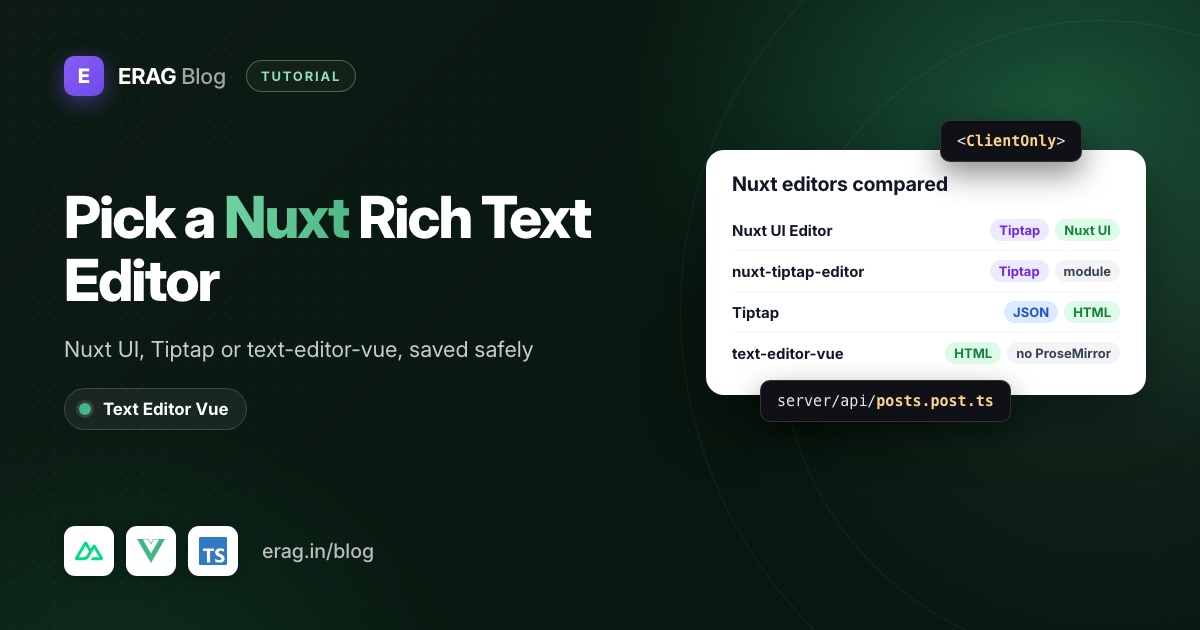
For a Nuxt rich text editor, use Nuxt UI's Editor component if your app already runs on Nuxt UI. Use Tiptap, directly or through the nuxt-tiptap-editor module, if you want to build a custom editor. For forms and CMS fields that just need a full toolbar and HTML out, a ready-made editor like text-editor-vue is quicker. Whichever you pick, save through a Nuxt server route and sanitize the HTML there.
This post compares those options, then builds a complete example with text-editor-vue, a dependency-free rich text editor for Vue 3. It's a plain Vue component, so there's no Nuxt module to configure. Install it with the server-side sanitizer:
npm install @erag/text-editor-vue sanitize-html
npm install -D @types/sanitize-html
The short version
- Pick an editor from the comparison below. If you already use Nuxt UI, try its Editor first.
- Add
@erag/text-editor-vue/style.cssto thecssarray innuxt.config.ts. - Create
app/components/PostEditor.vuethat wrapsEditorwithdefineModel(), and render it inside<ClientOnly>with a#fallbackskeleton. - Send
{ title, body }to/api/postswith$fetch. - In
server/api/posts.post.ts, check the user, validate the input and sanitize the HTML. - Save it, then render it with
v-htmlon a page that loads it withuseFetch.
Paths use the Nuxt 4 layout, where components and pages live under app/. On Nuxt 3, drop the app/ prefix. The same steps make a working Nuxt 3 WYSIWYG editor.
Which rich text editor should you use in Nuxt?
These are the four options that come up most for Nuxt. I checked each on its official docs, the Nuxt modules site and npm in November 2026:
| Option | Built on | What you need | Output | Cost | Fits when |
|---|---|---|---|---|---|
Nuxt UI Editor (UEditor) | Tiptap (ProseMirror) | Nuxt UI v4.3 or later | HTML, JSON or Markdown | Free, MIT | Your app already uses Nuxt UI |
nuxt-tiptap-editor module | Tiptap 3 | The module (v3.4.0) | Tiptap JSON or HTML | Free, MIT | You want Tiptap with auto-imports and less setup |
| Tiptap directly | ProseMirror | @tiptap/vue-3, @tiptap/pm, @tiptap/starter-kit | JSON or HTML | MIT core; paid cloud for collaboration and AI | You're building a custom editor |
text-editor-vue | Browser editing APIs, no ProseMirror | Vue 3.5 or later | HTML | Free, MIT | Forms and CMS fields that store HTML |
Here's how I'd decide.
Your app already uses Nuxt UI. Start with its Editor. Nuxt UI v4 made the old Pro components free and MIT, and the Editor arrived in v4.3 (December 2025) with companion components for a toolbar, slash-style suggestion menu, mentions, emoji and a drag handle. It's styled by your Nuxt UI theme, so it looks like the rest of your app from day one. That's hard to beat.
You want Tiptap but not Nuxt UI. Tiptap is a headless framework: you get the editing engine and build the toolbar yourself. Tiptap's official Nuxt guide uses @tiptap/vue-3 directly. The nuxt-tiptap-editor module wraps the same packages and auto-imports components such as TiptapEditorContent, plus an image upload extension.
You want a finished editor without a UI library. text-editor-vue gives you the menubar, toolbar, tables, links, images and a source view in one component, with Vue as its only peer dependency. The trade-offs: it stores HTML only, and native contenteditable behaves slightly differently between browsers. For a Notion-style block editor, Tiptap is the better base.
CKEditor 5 also publishes a Nuxt guide, under GPL or commercial licensing. If you need word-processor features such as track changes, it's worth a look.
The rest of this post builds the text-editor-vue version. The server route, sanitizing and rendering steps work the same for any editor that produces HTML.
Does text-editor-vue work with Nuxt SSR?
Yes, and it won't crash your server render. I checked by importing the package's built bundle (version 1.3.0) in plain Node and rendering it with Vue's renderToString. There were no window is not defined or document is not defined errors. Importing the package doesn't touch the DOM, and its dialogs only teleport to <body> when someone opens one.
What you get from the server, though, is an empty shell. The menubar, toolbar and status bar render, but the editable area is blank. The editor writes its content after it mounts in the browser. So server rendering an editor doesn't help anyone: the page is usually behind a login, and the toolbar can't do anything until hydration.
That's why I wrap it in <ClientOnly>. Nuxt drops the default slot from the server build, sends your fallback instead, and mounts the editor in the browser. Here are the three options side by side:
| Approach | Server output | Fallback content | Best for |
|---|---|---|---|
<ClientOnly> around the editor | Your #fallback slot | Yes | Most forms (this post) |
PostEditor.client.vue | Nothing | No | An editor that is always client-only |
| No wrapper | Empty editor shell | No | When you have measured and want the toolbar in the first paint |
One note on .client.vue: Nuxt only treats it as client-only when you use it through auto-imports or #components. Import it by its file path and it renders on the server like any other component.
Step 1: Register the stylesheet in nuxt.config.ts
The editor needs its stylesheet for the toolbar, menus, dialogs and image handles. In Nuxt, global CSS from a package goes in the css array:
// nuxt.config.ts
export default defineNuxtConfig({
    css: ['@erag/text-editor-vue/style.css'],
});
Loading it here, rather than inside the component, means the styles are in the page before the editor mounts. The Nuxt docs point out that CSS used only inside <ClientOnly> may not be inlined in the first HTML, so a global entry avoids a flash of unstyled toolbar.
The editor follows prefers-color-scheme by default. If your app controls dark mode with a class on <html>, the editor picks up class="dark" or data-theme="light" there.
Step 2: Wrap the editor in a component with v-model
Keep the editor's configuration in one component, app/components/PostEditor.vue:
<script setup lang="ts">
import { Editor, type EditorInit } from '@erag/text-editor-vue';

const body = defineModel<string>({ default: '' });

defineProps<{ disabled?: boolean }>();

const editorConfig: EditorInit = {
    height: 420,
    menubar: false,
    placeholder: 'Write your post...',
    toolbar: 'undo redo | blocks | bold italic underline | alignment | bullist numlist | link | removeformat code',
    blockFormats: [
        { label: 'Paragraph', value: 'p' },
        { label: 'Heading 2', value: 'h2' },
        { label: 'Heading 3', value: 'h3' },
        { label: 'Blockquote', value: 'blockquote' },
    ],
};
</script>

<template>
    <Editor
        v-model="body"
        :init="editorConfig"
        :disabled="disabled"
        aria-label="Post body"
    />
</template>
defineModel() turns the component into a v-model target, so the page can bind it like an input. The editor emits update:modelValue with the new HTML after each edit. It also emits change when it loses focus with changed content, which is a good hook for autosave.
The toolbar is deliberately short, and blockFormats limits the block menu to a paragraph, two headings and a quote. Step 4 allows exactly those tags on the server. When the toolbar and the sanitizer agree, nothing a user writes disappears on save. The toolbar UX guide explains how to pick controls per screen.
Step 3: Build the form page with ClientOnly
Now the page, app/pages/posts/new.vue:
<script setup lang="ts">
const title = ref('');
const body = ref('');
const errorMessage = ref<string | null>(null);
const isSaving = ref(false);

async function savePost(): Promise<void> {
    isSaving.value = true;
    errorMessage.value = null;

    try {
        const post = await $fetch('/api/posts', {
            method: 'POST',
            body: { title: title.value, body: body.value },
        });

        await navigateTo(`/posts/${post.id}`);
    } catch (error) {
        const data = (error as { data?: { message?: string } }).data;
        errorMessage.value = data?.message ?? 'The post could not be saved.';
    } finally {
        isSaving.value = false;
    }
}
</script>

<template>
    <form class="mx-auto max-w-3xl space-y-4 p-6" @submit.prevent="savePost">
        <label for="title">Title</label>
        <input id="title" v-model="title" />

        <ClientOnly>
            <PostEditor v-model="body" :disabled="isSaving" />

            <template #fallback>
                <div class="h-[420px] animate-pulse rounded-lg bg-gray-100" aria-hidden="true" />
            </template>
        </ClientOnly>

        <p v-if="errorMessage" role="alert">{{ errorMessage }}</p>

        <button type="submit" :disabled="isSaving">
            {{ isSaving ? 'Saving...' : 'Publish' }}
        </button>
    </form>
</template>ref, $fetch and navigateTo are auto-imported in Nuxt, and so is PostEditor. The fallback keeps the same height as the editor, so the layout doesn't jump when it mounts.
$fetch throws on any non-2xx response, and the error's data holds the JSON body your server route sent. That's where the validation message in Step 4 comes from.
Step 4: Save and sanitize in a Nuxt server route
The editor sanitizes pasted content in the browser, but that isn't a security boundary. Anyone can send a POST to /api/posts with any HTML they like. There's also a trap: the package exports a sanitizeHtml() helper, and its docs say it returns an empty string when browser DOM APIs are missing. On the server, every post would save with an empty body.
So sanitize with a library built for Node. sanitize-html uses htmlparser2 and needs no fake DOM. Put the rules in server/utils/sanitize-rich-text.ts:
import sanitizeHtml from 'sanitize-html';

const richTextOptions: sanitizeHtml.IOptions = {
    allowedTags: [
        'p', 'br', 'h2', 'h3', 'blockquote',
        'strong', 'b', 'em', 'i', 'u', 's',
        'ul', 'ol', 'li', 'a',
    ],
    allowedAttributes: {
        a: ['href', 'target', 'rel', 'title'],
        '*': ['style'],
    },
    allowedSchemes: ['http', 'https', 'mailto'],
    allowedStyles: {
        '*': {
            'text-align': [/^(left|right|center|justify)$/],
        },
    },
};

export function sanitizeRichText(html: string): string {
    return sanitizeHtml(html, richTextOptions);
}

export function htmlToText(html: string): string {
    return sanitizeHtml(html, { allowedTags: [], allowedAttributes: {} });
}
Then the route, server/api/posts.post.ts. The .post suffix means it only answers POST requests:
import { insertPost } from '../utils/posts';
import { htmlToText, sanitizeRichText } from '../utils/sanitize-rich-text';

export default defineEventHandler(async (event) => {
    // Check the session here with your auth module before saving anything.

    const payload = await readBody<{ title?: unknown; body?: unknown }>(event);

    const title = typeof payload?.title === 'string' ? payload.title.trim() : '';
    const body = sanitizeRichText(typeof payload?.body === 'string' ? payload.body : '');

    if (title === '' || title.length > 200) {
        throw createError({ status: 422, message: 'Give the post a title of up to 200 characters.' });
    }

    if (htmlToText(body).trim() === '') {
        throw createError({ status: 422, message: 'The post body is empty.' });
    }

    const post = await insertPost({ title, body });

    return { id: post.id };
});
insertPost is your own data layer, whether that's Drizzle, Prisma or a call to a separate API. The editor doesn't mind where the HTML ends up.
Why the allow-list looks like this:
- Tags match the toolbar from Step 2.
strongandbare both allowed because the browser's bold command can produce either. stylesurvives only fortext-align, which is what the alignment buttons write. Other declarations, includingurl()tricks, are removed.- Links keep
targetandrel. The editor addsrel="noopener noreferrer"itself when a user picks a new tab, andallowedSchemesrejectsjavascript:URLs. - Validation runs after sanitizing. A body that was only
<script>tags comes out empty and fails the check.
Before you trust the list, use every control in your toolbar and read the HTML in the Source code dialog (the code button). Add tags only for what you see there. If your Nuxt app saves to a Laravel API instead, sanitize in Laravel: storing rich text safely shows that version, and the reasoning is the same.
Step 5: Render the saved HTML on the public page
Add a GET route for one post, server/api/posts/[id].get.ts:
import { findPost } from '../../utils/posts';

export default defineEventHandler(async (event) => {
    const id = getRouterParam(event, 'id');
    const post = id ? await findPost(id) : null;

    if (!post) {
        throw createError({ status: 404, message: 'Post not found.' });
    }

    return { title: post.title, body: post.body };
});
Then the page, app/pages/posts/[id].vue:
<script setup lang="ts">
const route = useRoute();
const { data: post } = await useFetch(`/api/posts/${route.params.id}`);

if (!post.value) {
    throw createError({ status: 404, statusText: 'Post not found' });
}
</script>

<template>
    <article class="mx-auto max-w-3xl p-6">
        <h1>{{ post?.title }}</h1>
        <div class="post-body" v-html="post?.body" />
    </article>
</template>
This page doesn't need <ClientOnly>. useFetch runs during SSR, and v-html renders the HTML into the server response, so readers and search engines get the full article in the first byte.
v-html is only safe because the HTML was sanitized before it was saved. If you have rows from before the sanitizer existed, run them through sanitizeRichText() once, or sanitize in the GET route too.
The editor's list and heading styles are scoped to .erag-editor, so the public page needs its own. With Tailwind's preflight, lists lose their bullets until you add them back:
/* app/assets/css/main.css */
.post-body ul { list-style: disc; padding-left: 1.5rem; }
.post-body ol { list-style: decimal; padding-left: 1.5rem; }
.post-body h2 { font-size: 1.5rem; font-weight: 700; margin: 1.5rem 0 0.75rem; }
.post-body blockquote { border-left: 3px solid #d1d5db; padding-left: 1rem; color: #4b5563; }
Add that file to the same css array in nuxt.config.ts, or use the Tailwind typography plugin's prose class.
What about images, mentions and embeds?
All of them work the same way in Nuxt as in any Vue app, because the editor doesn't know which framework hosts it:
- Images: pass an
imagesUploadHandlerininitthat uploads the file and returns its URL. A Nuxt server route can receive it withreadMultipartFormData(). Keep image URLs in the HTML rather than pasteddata:images. The image upload docs cover the handler, and rich text image uploads with Laravel and Vue shows a full backend. - Mentions and merge tags: see mentions and merge tags in a Vue editor.
- Video embeds: the
mediacontrol can insert HTTPS iframes, which you then allow host by host on the server.
Each one adds tags or attributes to the saved HTML, so extend the server allow-list when you turn one on.
Common problems and fixes
The toolbar has no styling
The stylesheet isn't loaded. Add @erag/text-editor-vue/style.css to the css array in nuxt.config.ts.
The PostEditor.client.vue component renders on the server anyway
You imported it by its file path. Use the auto-imported <PostEditor /> or import it from #components.
Every post saves with an empty body
You're calling the package's sanitizeHtml() in a server route. It returns '' without browser DOM APIs. Use sanitize-html there.
The parent's v-model doesn't update
The wrapper isn't forwarding the model. Use defineModel() in PostEditor.vue and bind it with v-model on Editor, as in Step 2.
Alignment or headings disappear after saving
The toolbar produces something the allow-list removes. Either allow it on the server (style with text-align, or the heading tag) or remove the control from the toolbar.
Frequently asked questions
What is the best rich text editor for Nuxt?
If you use Nuxt UI, its Tiptap-based Editor component. For a custom editor without Nuxt UI, Tiptap directly or through nuxt-tiptap-editor. For a finished toolbar editor that stores HTML, text-editor-vue.
Does this setup work with Nuxt 3?
Yes. <ClientOnly>, .client.vue components, server/api routes, readBody and useFetch all exist in Nuxt 3. Use components/ and pages/ instead of app/components/ and app/pages/.
Is there a Nuxt module for text-editor-vue?
No, and you don't need one. It's a regular Vue 3 component: install it, add the stylesheet to nuxt.config.ts, and use it inside <ClientOnly>.
Do I have to use ClientOnly?
No. The editor renders on the server without errors. <ClientOnly> is a choice: it replaces an empty, inactive editor shell with a fallback you control, and keeps the editor out of the server bundle.
Can I sanitize in the browser and skip the server step?
No. Browser code is under the user's control, and anyone can call your server route directly. Sanitize where the HTML is saved.
Which Vue version does it need?
The peer dependency is vue from 3.5 up to, but not including, 4. Current Nuxt 3 and Nuxt 4 releases both ship a Vue version in that range.
Add the editor to your Nuxt app
npm install @erag/text-editor-vue sanitize-html- Documentation: installation, usage with v-model and security
- Start simpler: a dependency-free rich text editor for Vue 3
- On Laravel and Inertia instead: build a Laravel blog with a rich text editor
