
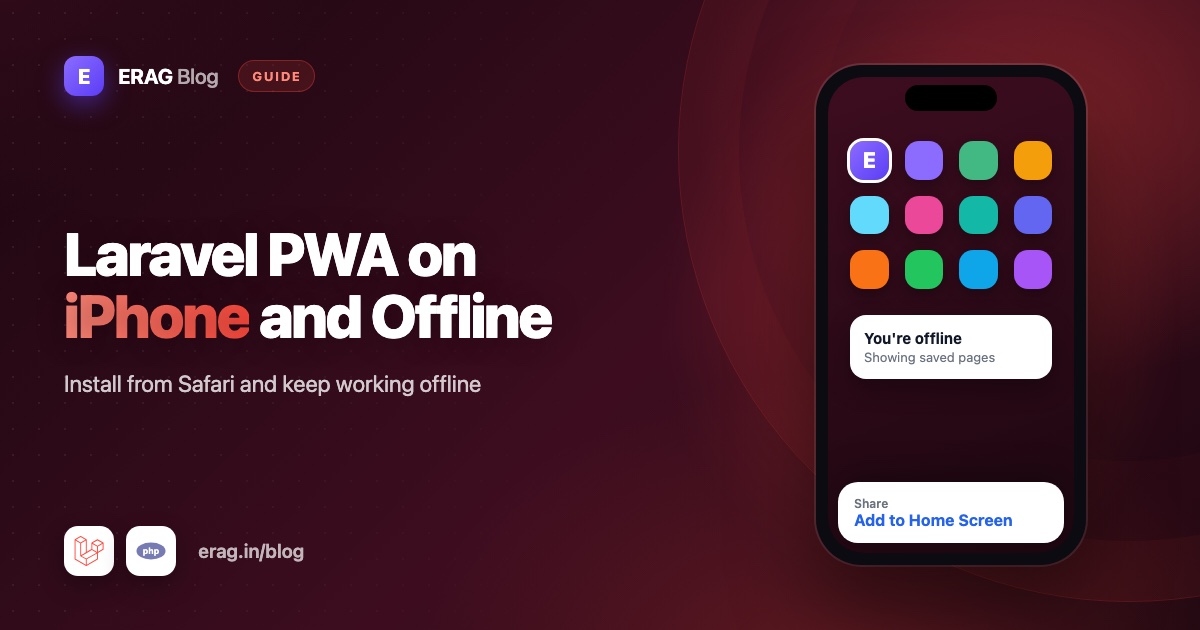
To install a Laravel PWA on an iPhone or iPad, open the site in Safari, tap the Share button and choose Add to Home Screen. iPhones never show an automatic install prompt, so Laravel PWA shows Safari visitors a short tip that tells them exactly that. Its service worker also shows a friendly offline page when a page can't load without a connection.
This guide covers what iPhone users see, what the package does for them, how the offline page works and what a PWA on iOS can't do. New to the package? Start with how to turn a Laravel app into a PWA, which covers Blade, Livewire and Inertia.
The short version
- iPhone and iPad users install a PWA by hand: Share, then Add to Home Screen. No website can open an install dialog on iOS.
- With
'install-button' => trueinconfig/pwa.php, the package shows Safari users a tip with those steps. @PwaHeadadds the Apple tags that give your app its name and icon and let it open without Safari's address bar.- The service worker saves
public/offline.htmland shows it when a page load fails offline. - The offline page is a fallback, not an offline mode. Pages and data still come from your server.
How do you install a PWA on an iPhone?
These are the steps your users follow. Feel free to copy them into your help pages:
- Open the website in Safari.
- Tap the Share button, the square with an arrow pointing up. Depending on the iOS version and Safari layout, it sits in the toolbar or inside the ••• menu.
- Scroll down and tap Add to Home Screen.
- Change the name if you like, then tap Add.
- Open the app from its new Home Screen icon.
The same steps work on iPad. Recent iOS versions also offer Add to Home Screen in some other browsers, but Safari is the safest instruction to give.
Why iPhones don't show an install prompt
On Android and desktop, Chrome fires an event called beforeinstallprompt when a site can be installed. A website can catch it and show its own Install button that opens the browser's install dialog.
Safari on iPhone and iPad doesn't fire that event, so no website can trigger the install. All you can do is tell people where to tap, and that is what the package does.
What Laravel PWA does for iPhone and iPad users
The Apple tags from @PwaHead
@PwaHead goes in the <head> of your layout. Alongside the manifest link, it outputs these tags for Apple devices:
| Tag | Value | What iPhone users notice |
|---|---|---|
apple-mobile-web-app-capable | yes | The app opens without Safari's address bar |
apple-mobile-web-app-status-bar-style | default | A normal status bar at the top |
apple-mobile-web-app-title | your manifest name | The suggested name under the icon |
apple-touch-icon | your first icon, logo.png by default | The Home Screen icon |
Two things follow. First, the iPhone label comes from name, not short_name, and a long name gets cut off under the icon. Second, the icon is your public/logo.png. Use a square PNG of at least 512x512 pixels with a solid background, because iPhone doesn't handle transparent icons well.
If your app came from a Laravel starter kit, its layout already has its own apple-touch-icon link. Remove it so iPhones use your PWA logo.
The iOS install tip
When 'install-button' => true is set, @RegisterServiceWorkerScript adds a small script and a round button in the bottom-right corner, hidden until needed. On iPhone and iPad, the script checks three things:
- Is the browser on an iPhone, iPad or iPod?
- Is it Safari?
- Is the page open in the browser, not already launched from the Home Screen?
If all three are true, the button appears with a small white panel (the .ios-tip element) that reads: "To install on iPhone or iPad, tap Share in Safari, then choose Add to Home Screen." Tapping the button shows the same tip. Once the user opens the app from the Home Screen, the script hides it.
On screens up to 640 pixels wide, the injected styles move the button 16 pixels from the corner and shrink it to 56 pixels. The install prompt docs show the full styles.
The tip is a white panel with dark text. In a dark-themed app that can look out of place. The Laravel starter kits add a dark class to the <html> element, so you can restyle it in resources/css/app.css:
html.dark .box-icon .ios-tip {
    background: #1f2937;
    color: #f9fafb;
}
To move the button or replace it with your own, read add an install app button to your Laravel site.
How does the offline fallback page work?
A service worker is a small script the browser keeps running between your app and the network. The package's worker is registered by @RegisterServiceWorkerScript and does three simple jobs:
- When it installs, it saves one file,
/offline.html, in a cache calledoffline-cache-v1. - When someone opens a page (a full page load), it asks the network first. If that request fails, it shows the saved offline page instead of Safari's or Chrome's error screen.
- For everything else, such as images, stylesheets and scripts, it checks the cache and then the network. Since the cache holds only the offline page, these requests go to your server as usual.
The address bar keeps the page's real URL. When the connection comes back, a reload loads the real page. This works in Safari and in the Home Screen app, because Safari supports service workers.
One catch: the worker can only save the offline page after a visit with a working connection. Someone who has never opened your site online won't see your offline page.
How to customise the offline page
The page lives at public/offline.html. The default is a dark-to-red gradient with an animated "CONNECTING" message. You can replace it with anything, as long as you follow one rule: keep it self-contained. The worker saves only this one file, so your Vite stylesheet, web fonts and even /logo.png won't load offline. Put the CSS inline and use system fonts.
Here is a calmer version with a Try again button that also reloads by itself when the connection returns:
<!DOCTYPE html>
<html lang="en">
<head>
    <meta charset="UTF-8">
    <meta name="viewport" content="width=device-width, initial-scale=1.0">
    <meta name="theme-color" content="#0f172a">
    <title>You're offline</title>
    <style>
        body { margin: 0; min-height: 100vh; display: grid; place-items: center; padding: 24px; box-sizing: border-box; font-family: system-ui, sans-serif; background: #0f172a; color: #f8fafc; text-align: center; }
        p { color: #cbd5e1; margin: 0 0 24px; }
        button { font: inherit; padding: 12px 20px; border: 0; border-radius: 8px; background: #f8fafc; color: #0f172a; }
    </style>
</head>
<body>
    <main>
        <h1>You're offline</h1>
        <p>Check your Wi-Fi or mobile data. This page reloads when you're back online.</p>
        <button type="button" onclick="location.reload()">Try again</button>
    </main>
    <script>
        window.addEventListener('online', () => location.reload());
    </script>
</body>
</html>
Make returning visitors get the new page
People who already visited your site have the old offline page saved. Browsers only install a new service worker when sw.js itself changes, so editing offline.html alone isn't enough. Open public/sw.js and change the cache name:
const CACHE_NAME = "offline-cache-v2";The browser installs the updated worker, which saves the new page. When it takes over, after every tab and window of your app has closed, it deletes the old cache.
Don't run php artisan erag:install-pwa again after making these changes. It republishes the package files with --force and replaces your offline.html and sw.js.
What the offline page can and can't do
| It can | It can't |
|---|---|
| Replace the browser's error screen with your own page | Show pages the user opened earlier, because pages aren't cached |
| Work in Safari and in the Home Screen app | Save a form submission and send it later |
| Reload by itself when the connection returns, with the script above | Keep your app's data available offline |
| Stay small and fast, since it's one file | Catch Inertia link clicks, which are background requests, not page loads |
If a client asks for "an app that works offline", this table is a good way to agree on what that means before any work starts.
How to test offline mode
In Chrome DevTools
- Open the site once while online. Under Application > Service workers, the worker should be activated. Under Cache storage,
offline-cache-v1should contain/offline.html. - Tick Offline in the Service workers panel, or pick Offline from the throttling menu in the Network tab.
- Reload the page, or type another URL from your site. You should see your offline page.
- Untick Offline. With the script above, the page reloads by itself.
While you edit sw.js, tick Update on reload so each reload picks up the new worker.
On a real iPhone
- Use a site with a valid HTTPS certificate, such as your staging server.
- Open it in Safari, add it to the Home Screen, and open the app once while online.
- Turn on Airplane Mode.
- Close the app fully from the app switcher, then open it again. You should see your offline page.
To debug on the phone itself, turn on Web Inspector in Safari's advanced settings on the iPhone, connect it to a Mac and open it from the Develop menu in Safari on the Mac.
Honest limits of PWAs on iPhone
- No automatic install prompt. Users install by hand, so tell them how, in the app and in your help pages.
- A separate login. The Home Screen app often keeps its own cookies and storage, apart from Safari. Users may need to sign in again inside the installed app, so a "remember me" option helps.
- Saved data can be cleared. Safari may remove stored website data for sites that haven't been used for a while. If the offline page disappears, the worker saves it again on the next online visit.
- No back button or address bar. In the Home Screen app, every screen needs its own way back.
- Push notifications are separate. Recent iOS versions support web push only for apps added to the Home Screen. This package doesn't set up push.
- Things change between iOS versions. Test on the devices your users actually have.
Common problems and fixes
The install tip never appears. Check that install-button is true and the page is open in Safari. Recent iPads often request desktop sites and look like a Mac to the script, so they may not see the tip.
The Home Screen icon looks wrong. Use a square PNG of at least 512x512 pixels with a solid background, and remove any other apple-touch-icon link from your layout. Icons that are already installed don't refresh, so remove the app and add it again.
The name under the icon is cut off. The label comes from your manifest name. Shorten it, run php artisan erag:update-manifest, and add the app to the Home Screen again.
Users still see the old offline page. Change CACHE_NAME in public/sw.js, as shown above.
The browser error appears instead of the offline page. The worker probably never installed. Check for HTTPS, make sure @RegisterServiceWorkerScript is in your layout, and open the site once while online.
Frequently asked questions
Can you install a PWA on an iPhone?
Yes. Open the site in Safari, tap Share and choose Add to Home Screen. The app then gets its own icon and opens without Safari's address bar.
Why is there no install button on iPhone?
Safari doesn't give websites the event they need to open an install dialog. The package shows a tip with the manual steps instead, which is the most any website can do on iOS.
Does a Laravel PWA work offline on iPhone?
Partly. After one online visit, the service worker shows your offline page when a page can't load. Your app's pages, data and forms still need a connection.
Can I change the text of the iOS install tip?
Not through config/pwa.php. The text is part of the package's script. You can restyle it with CSS, or set install-button to false and show your own hint.
Do iPhone users get updates automatically?
Yes. The service worker only saves the offline page, so every launch loads your latest pages and assets from the server. You never have to ask users to reinstall.
Can a Laravel PWA send push notifications on iPhone?
Recent iOS versions allow web push for apps added to the Home Screen, but this package doesn't include push. It focuses on the manifest, the service worker, the install prompt and the offline page.
Get started
composer require erag/laravel-pwa
php artisan erag:install-pwa
php artisan erag:update-manifest
Read the install prompt and offline docs and the Blade directives guide, or browse the source on GitHub. To learn how the manifest is generated, read web app manifest and service worker in Laravel.
